
Getting started
From download to your first edit in a few minutes: install the app, sign in to DepthField Cloud for AI, and (if you have one) activate your license.
You need a Mac with Apple silicon running macOS 26 or later. Everything below happens once; after that the app just opens.
1. Install the app
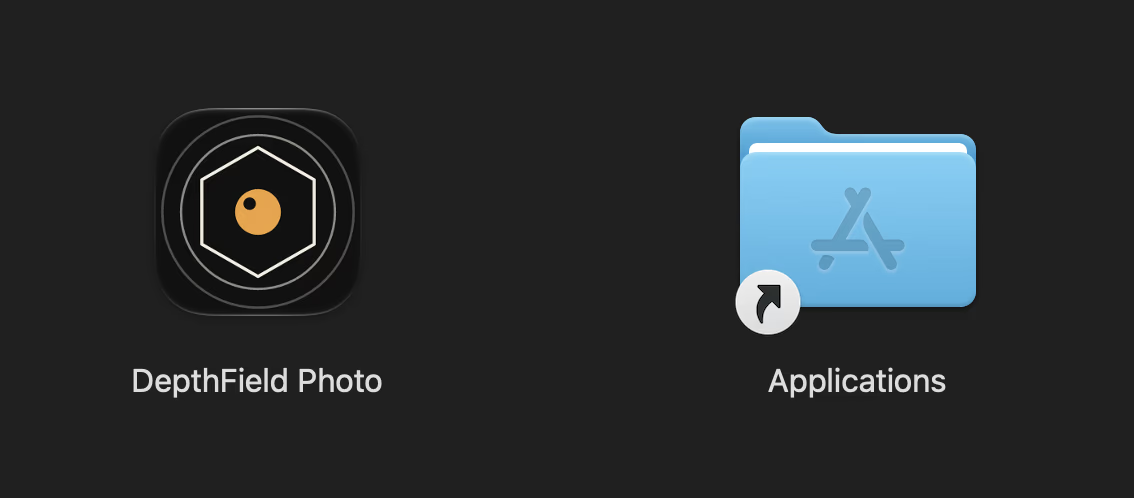
Download the disk image (.dmg) and open it. Drag DepthField Photo
onto the Applications folder, then launch it from Applications. Updates after
that arrive inside the app.
2. Choose how to power the AI
On first launch a short setup screen asks how you want to use AI. The basic editor (layers, selections, filters, depth effects) works offline either way; AI image generation and the chat assistant need a connection.
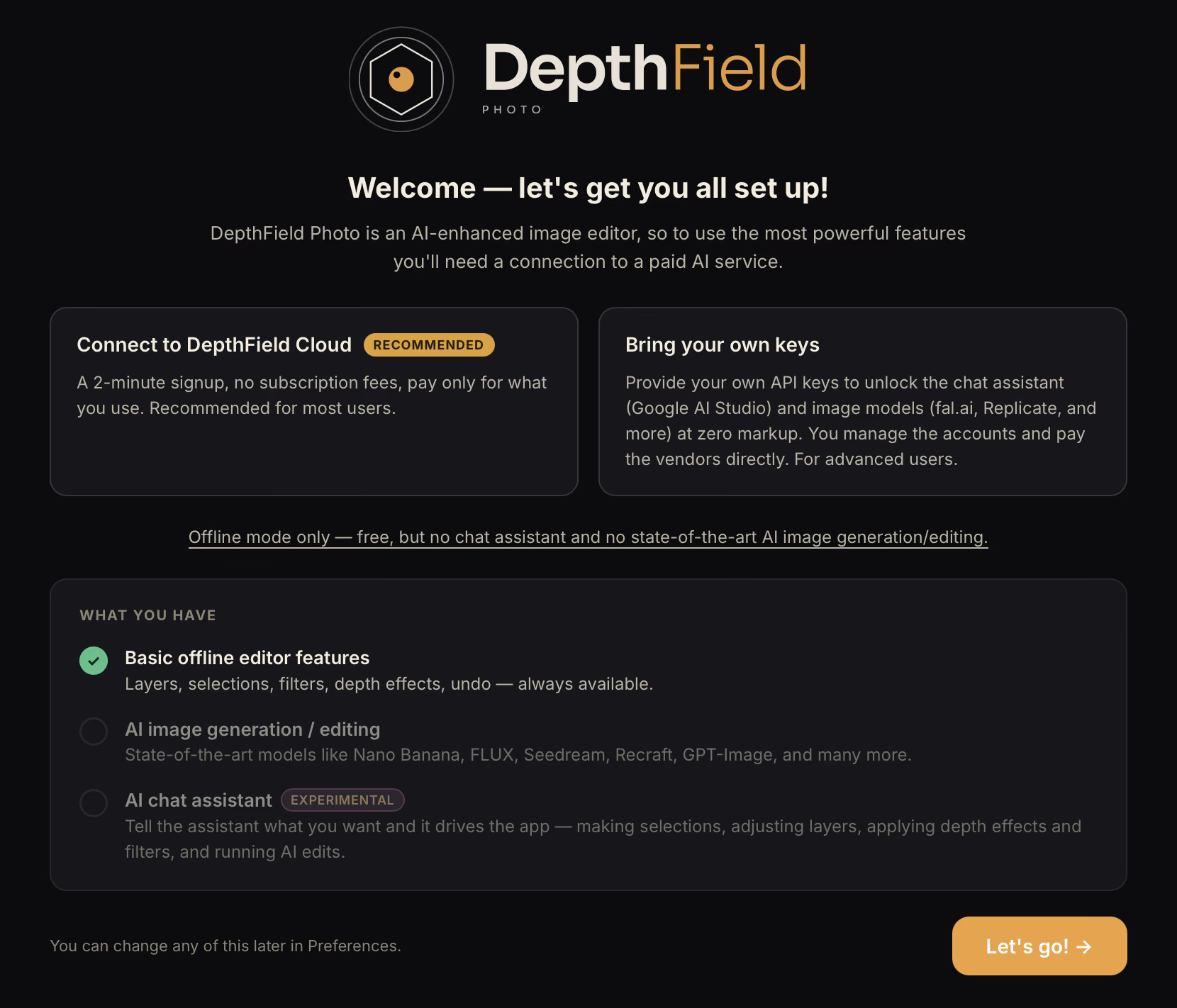
- Connect to DepthField Cloud is the recommended path: no subscription, you pay only for what you use, and you never touch an API key. Pick this one.
- Bring your own keys is for people who already have accounts with the AI vendors and want to pay them directly at zero markup.
- Offline mode only is free and skips AI entirely. You can connect later in Preferences.
3. Sign in with a magic link
Enter your email address and click Sign in / Create account. There is no password.
Beta: DepthField Cloud sign-in is invite-only for now. Use the email address you applied with. If you get no email, check spam, then write to hello@depthfield.photo.

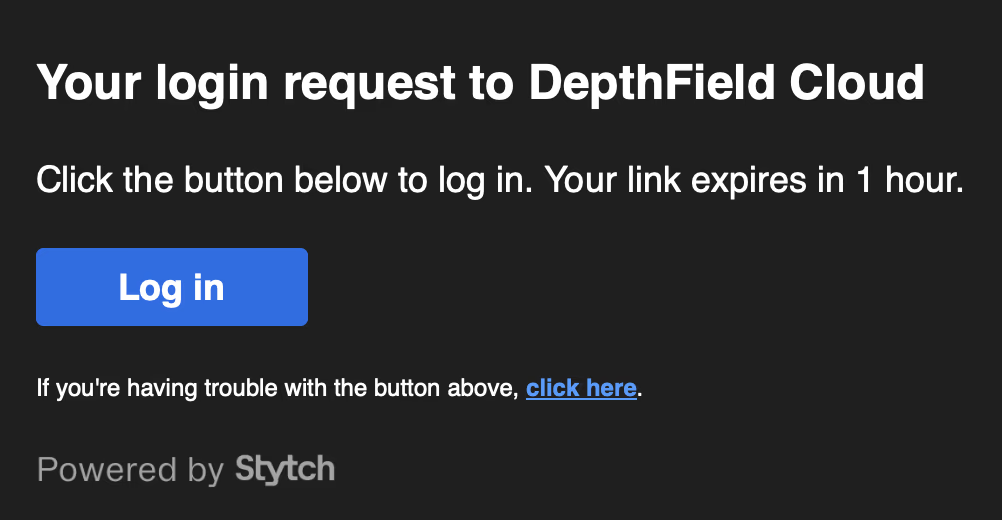
A message from DepthField Cloud arrives shortly. Click Log in; the link works for one hour.
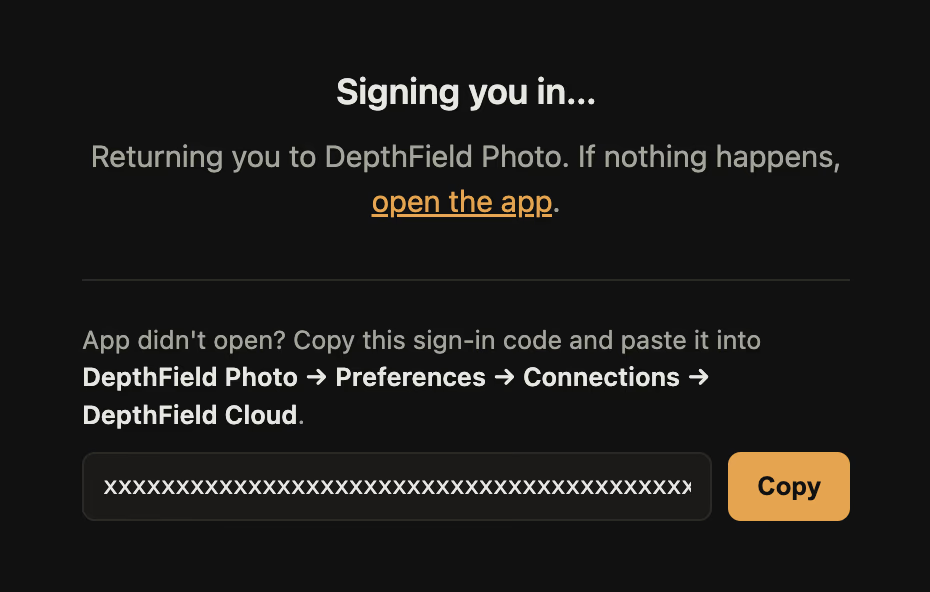
Your browser opens a "Signing you in…" page and hands you back to the app, which finishes signing in on its own.
If the app doesn't open
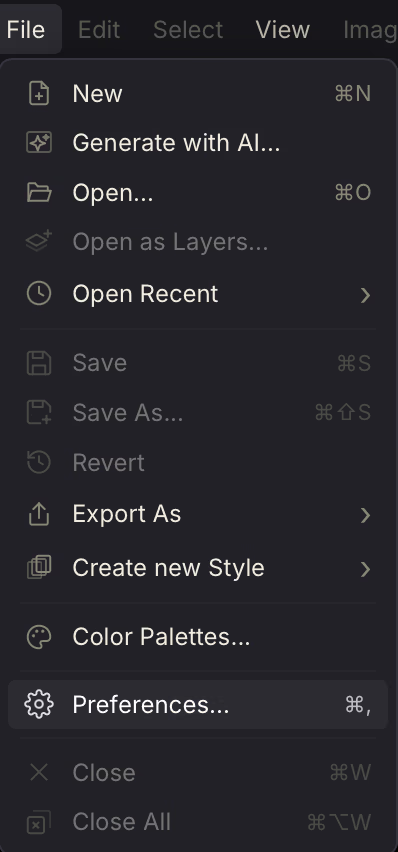
Click open the app on that page. If nothing happens, copy the sign-in code shown below it, then in DepthField Photo choose File → Preferences… (⌘ ,), open Connections → DepthField Cloud, and paste the code in.
4. You're set
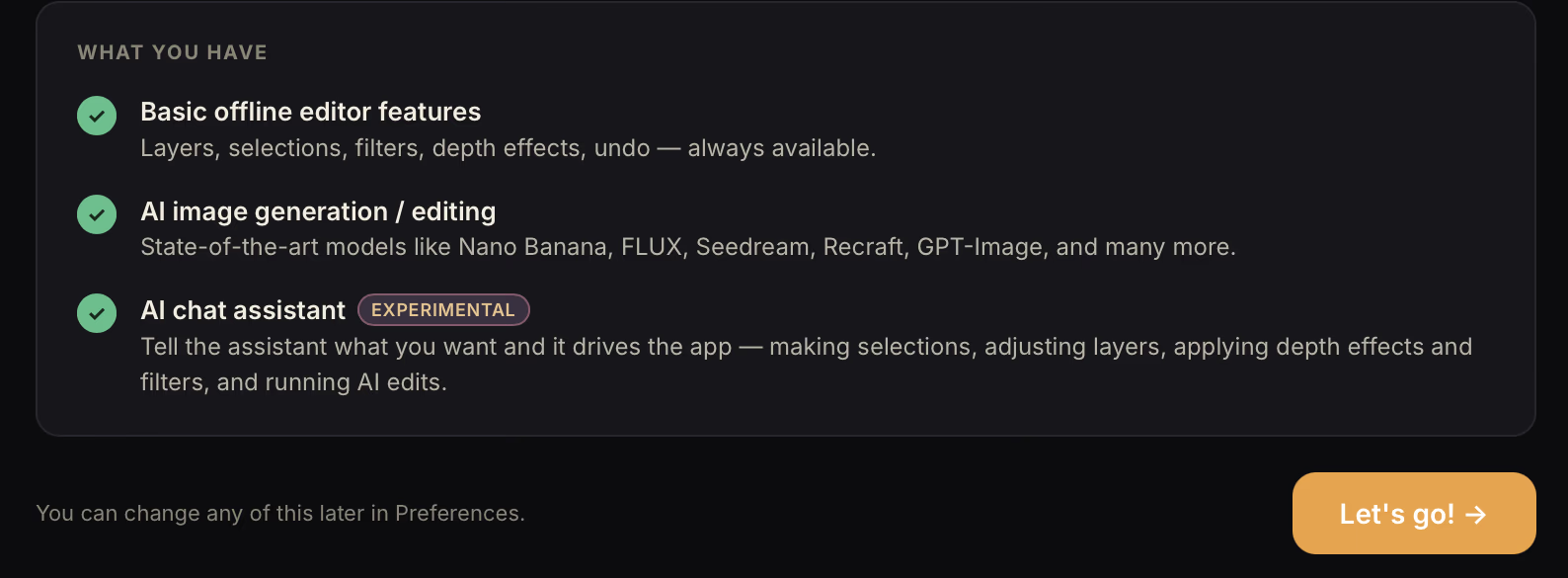
The setup screen now shows everything switched on. Click Let's go! and open a photo.
- Your wallet. During the beta your DepthField Cloud account starts with a $10 gift of cloud AI. Every AI action shows its price before you click it.
- On-device tools. You may see "Setting up on-device AI tools…" with a percentage next to the button. That is a one-time download; you can start editing while it finishes.
- Change your mind later. Everything on the setup screen lives in Preferences.
5. Activate your license
DepthField Photo is free to try. When the trial ends, the app goes read-only: you can still open, view and zoom your work, but saving and exporting pause until you add a license.
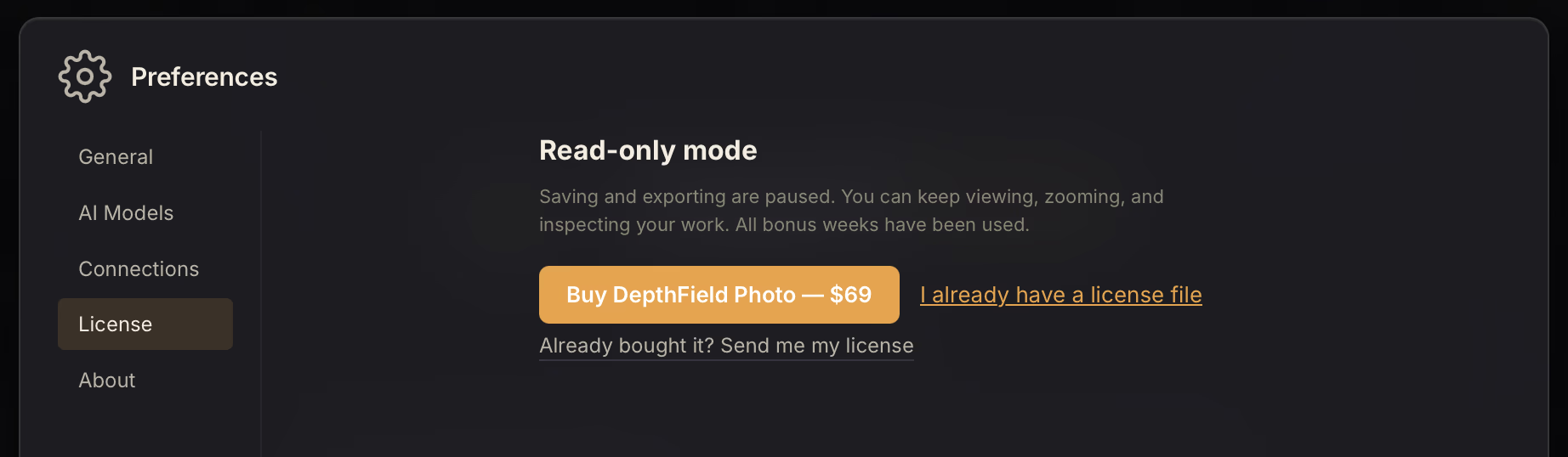
Your license arrives in an email as a link. Click it and the app activates itself, with nothing to download or paste. If you would rather do it by hand, open Preferences → License and choose I already have a license file. Lost the email? Already bought it? Send me my license in the same place sends it again.
Stuck, or something feels off?
Use the Feedback button in the app: it comes straight to the person who builds DepthField Photo. Bug, confusion or idea, all welcome. You can also write to hello@depthfield.photo.