Changelog

What's new

Every DepthField Photo release, newest first: new features, smaller improvements and bug fixes. Not sure which version you have? It's in Settings ▸ About.

The beta is closed, so there are no download links yet. Join the waiting list.

0.9.0

Room Lights and Depth Blur

Room Lights switches on the lamps in a photo of a room and turns day into night. Depth Blur (Refocus) blurs a photo by depth like a real lens, in front of the subject as well as behind, and refocuses on anything you click. Declutter Room tidies a room photo in one click, Straighten stands leaning buildings upright, Sunrays shines through the scene's own trees and windows, and Expression Matrix can borrow a whole expression from a catalog.

New

Room Lights

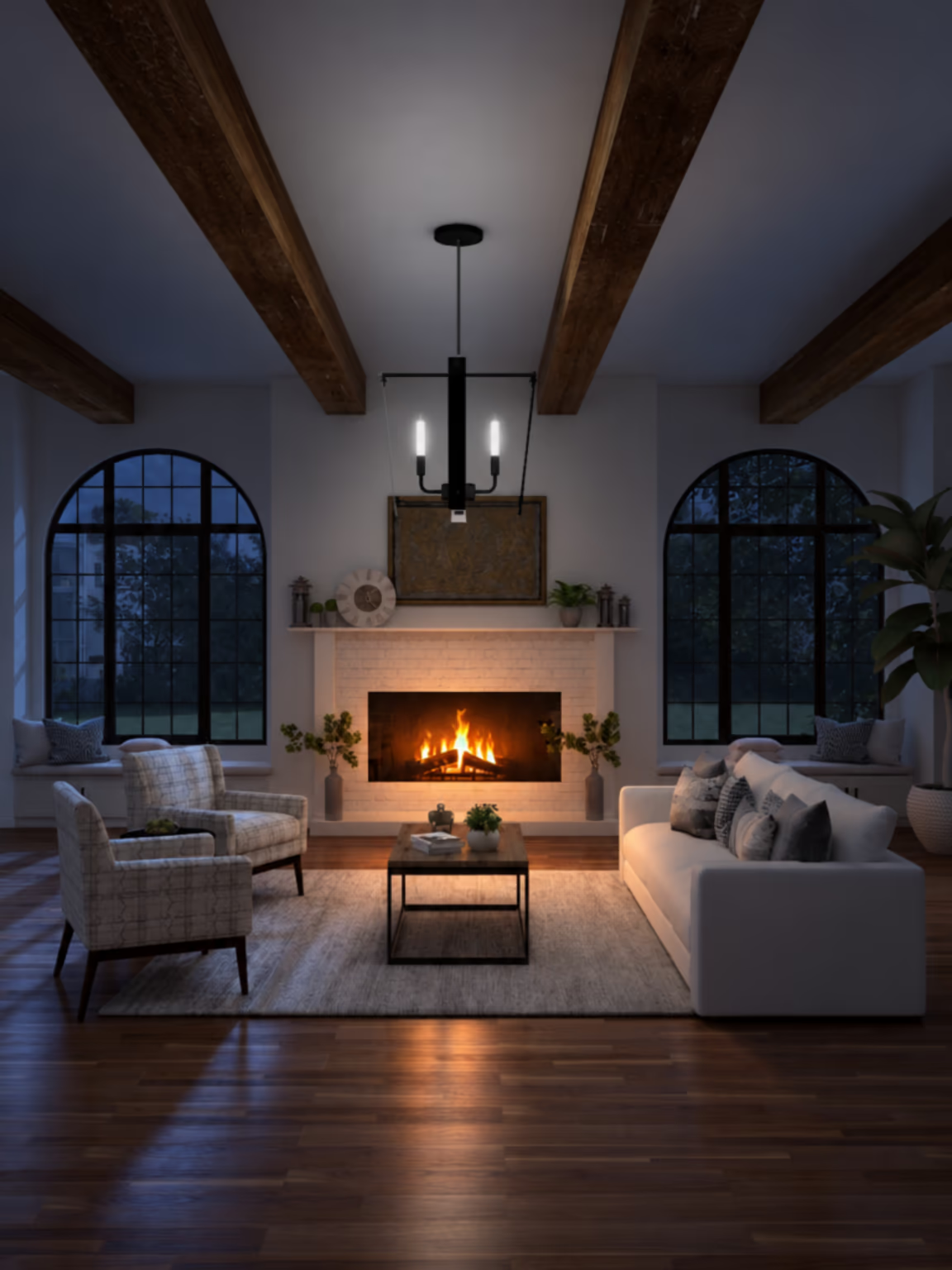
Switch on the lamps in the photo itself. Open Relight Scene on a photo of a room, go to its Interiors tab and choose Switch on this room's own lamps. Room Lights finds the room's lamps and windows, and Prepare works out their light once (it's paid, and the button shows the price). From then on everything is instant: tap a lamp on the picture to switch it on, set its brightness and color, turn day into night, and drag the sun or the moon to aim the light coming in through the windows.

When it looks right, Render final re-renders the room with AI and adds it as a new layer above your photo, so the original stays underneath. Room Lights is marked Experimental while it's being refined.
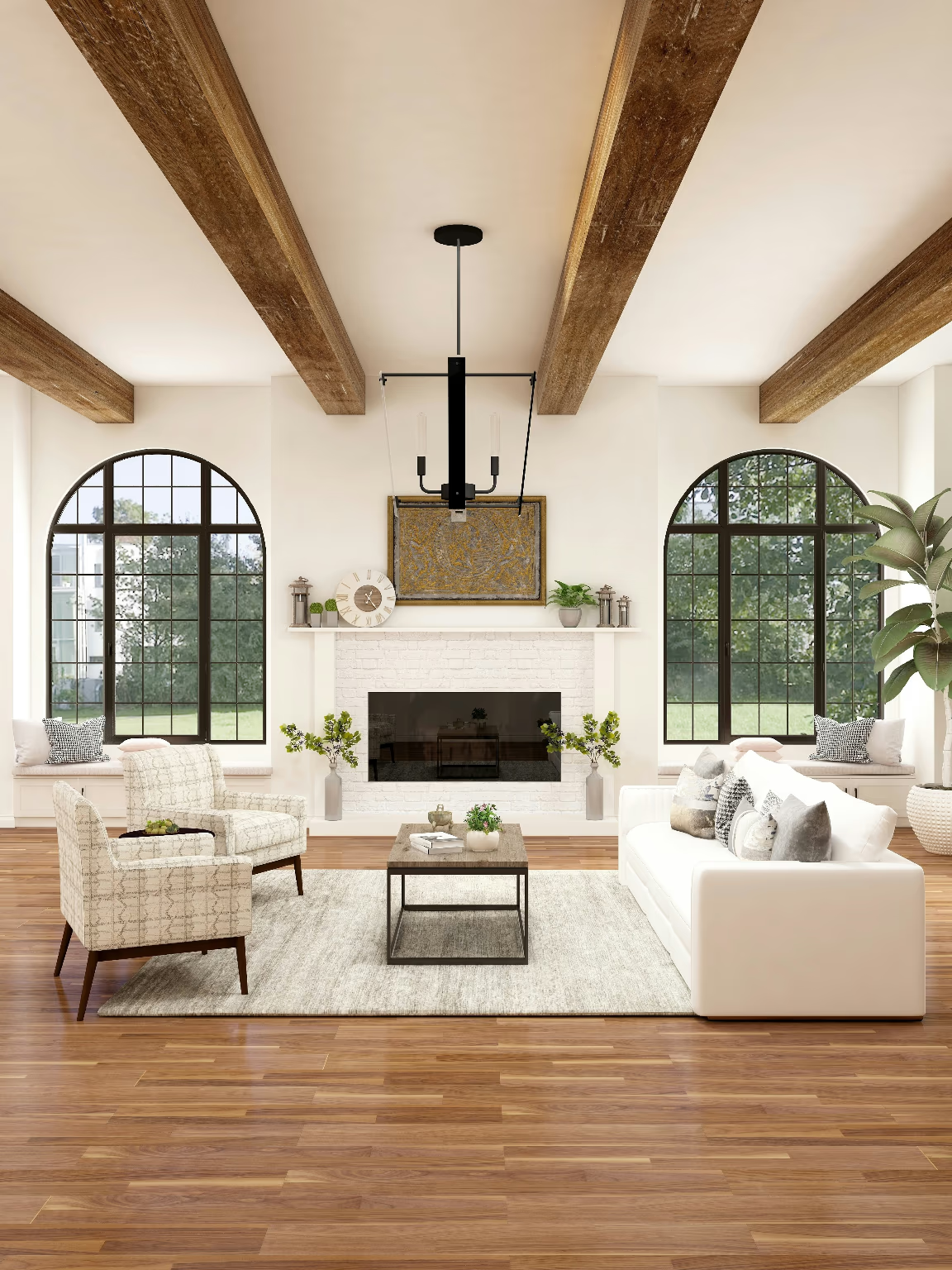
A bright, white living room by day: arched black-framed windows onto a garden, exposed wooden beams, a white brick fireplace with a dark firebox, a black chandelier, a white sofa and two patterned armchairs. Before
The same living room after Room Lights: night outside the windows, a fire burning in the fireplace, the chandelier's candle bulbs lit, and warm light spilling across the floor and furniture. After

Depth Blur (Refocus)

Background Blur is now Depth Blur (Refocus), with a new lens. It blurs by depth the way a real camera lens does: what's in front of the focus blurs as well as what's behind it, so a fist or a shoulder close to the camera goes soft too. Click anything on the picture or on the depth map at the top of the dialog to focus on it, and the focus pulls over smoothly. Focus, Depth of Field and Blur set how much stays sharp and how soft the rest goes. Bokeh turns bright highlights into discs, in the shape you pick: circular, hexagonal, pentagonal, star or cat-eye. The discs stay put as you zoom, pan and apply, and sharp edges no longer get a halo.

Find it under Effect ▸ Blur & Focus, in the action bar's Depth Effects, or with ⌘K.

Declutter Room

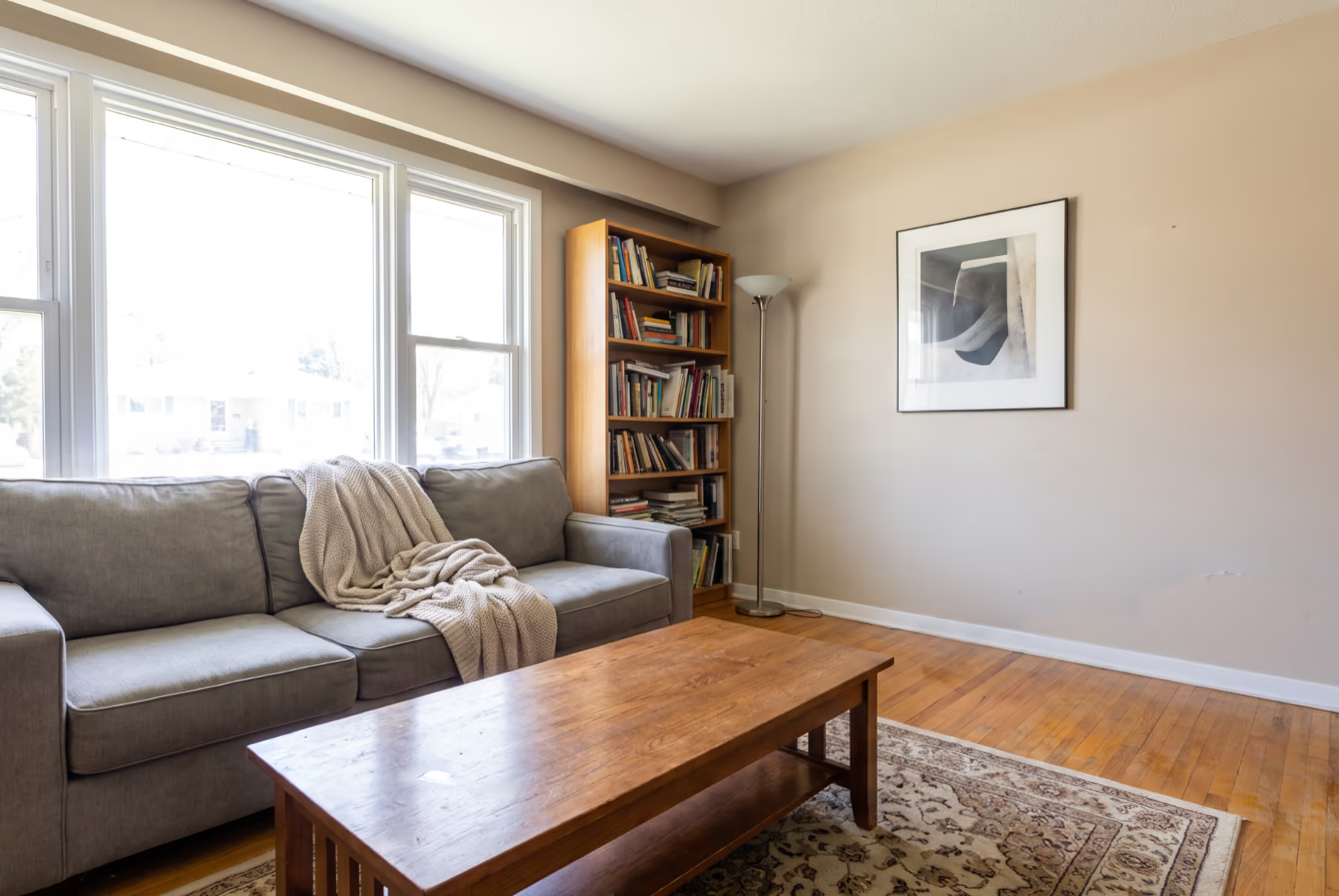
One click clears the clutter and personal things out of a room and leaves the furniture where it is, which is just what a listing photo needs. The result lands as its own layer, masked to only the places that changed, so the rest of the room keeps its original pixels. If it took something you wanted to keep, paint it back on the mask. Find it under Effect ▸ Repair, in the AI menu's Interiors group, or among the suggested edits when you open a photo of a room.
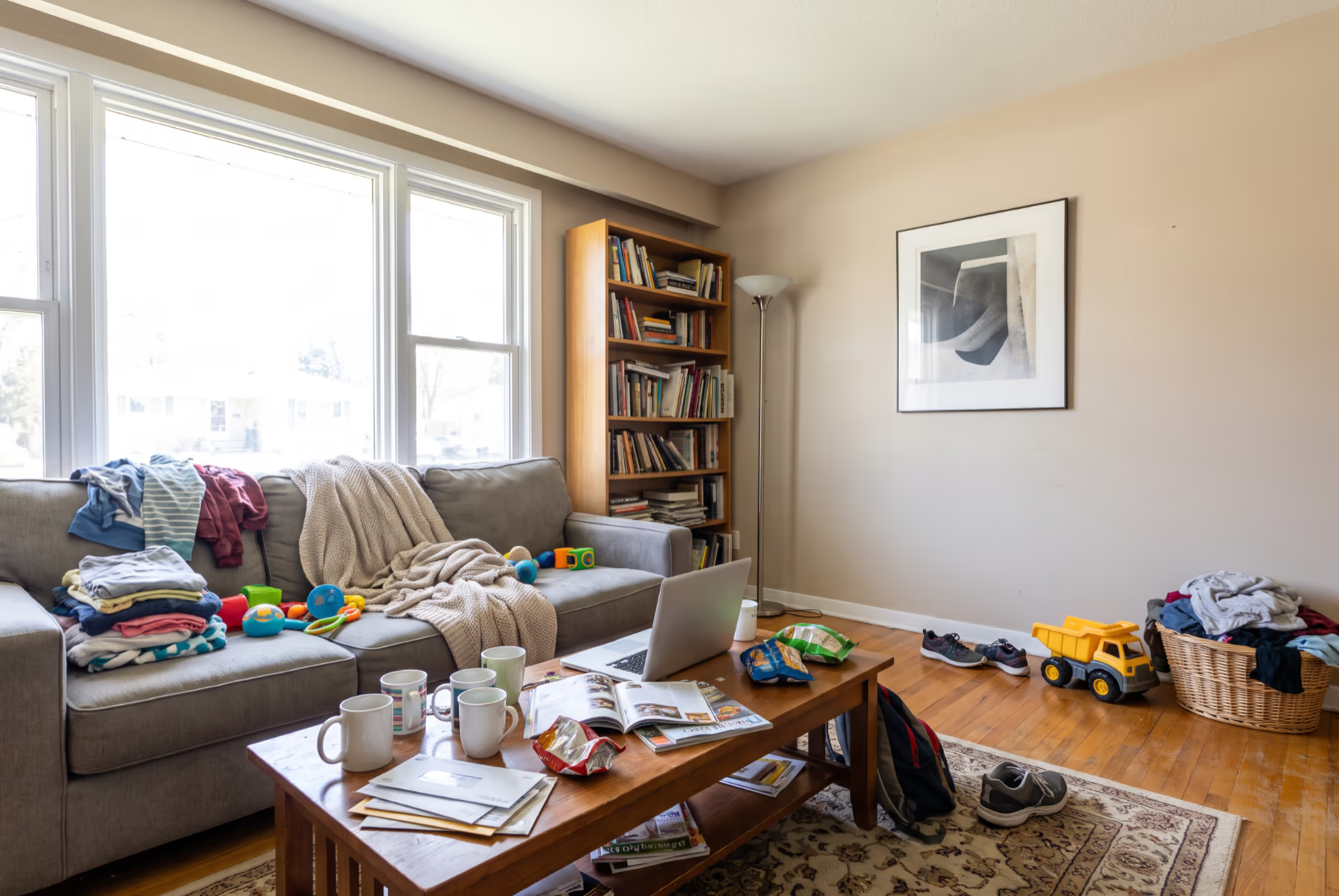
A cluttered living room with beige walls: laundry piled on a gray sofa beside baby toys, mugs, a laptop, snacks, magazines and a stack of mail on the coffee table, sneakers, a backpack and a toy dump truck on the floor, and an overflowing laundry basket against the wall. Before
The same room after Declutter Room: the sofa, coffee table and floor are clear, and the sofa, knit throw, coffee table, rug, bookcase, floor lamp and framed print are where they were. After

Change Color

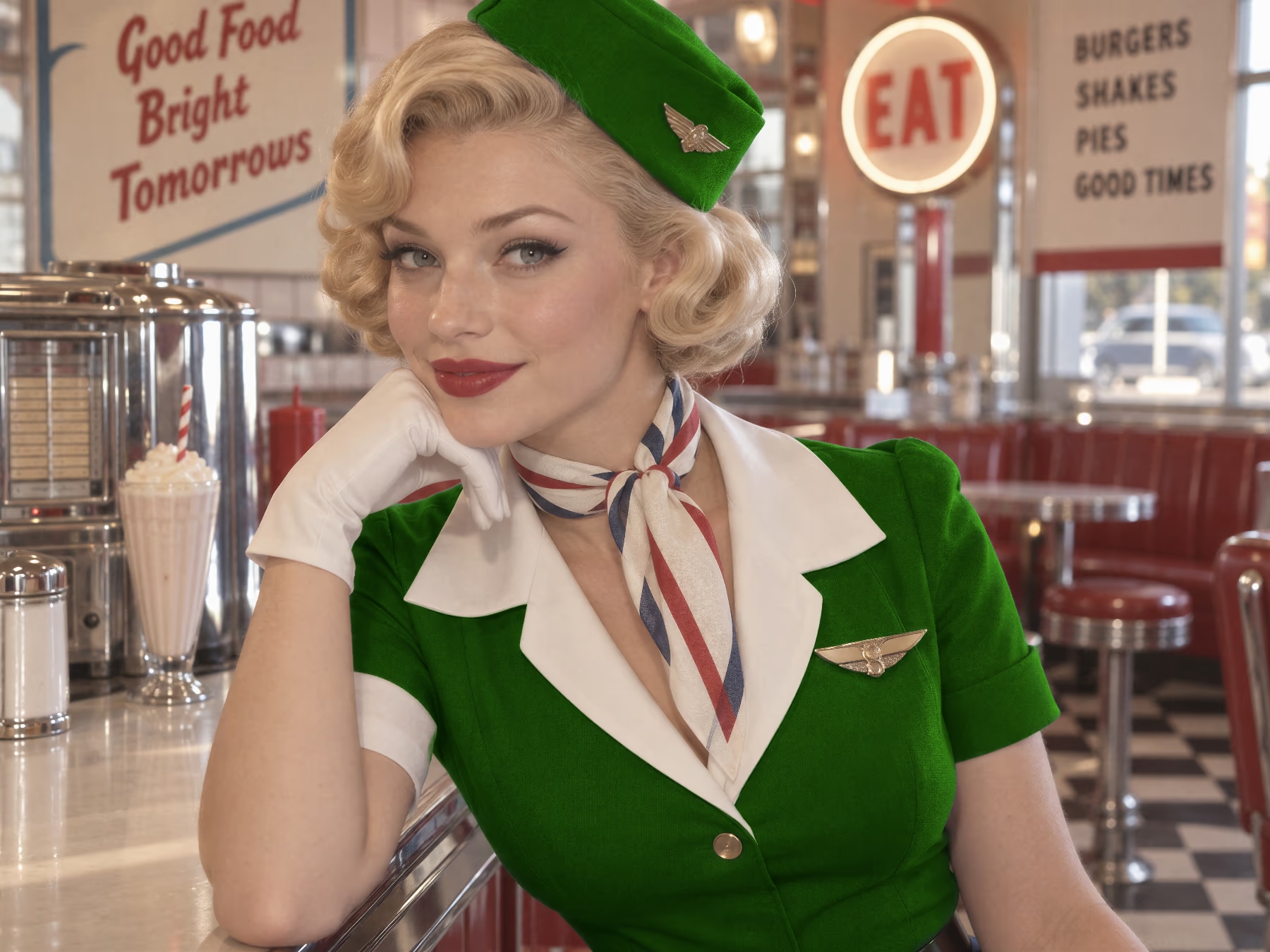
Select something, like a sweater, a car or a wall, and choose Change Color in the action bar. Pick the new color and the thing takes it in its own light: folds, shadows and highlights stay where they were, and trim, skin and chrome next to it are left alone. Nudge Saturation and Lightness to taste. It's free and instant, and it lands as a Hue / Saturation / Lightness live filter with its own mask, so you can change the color again later.
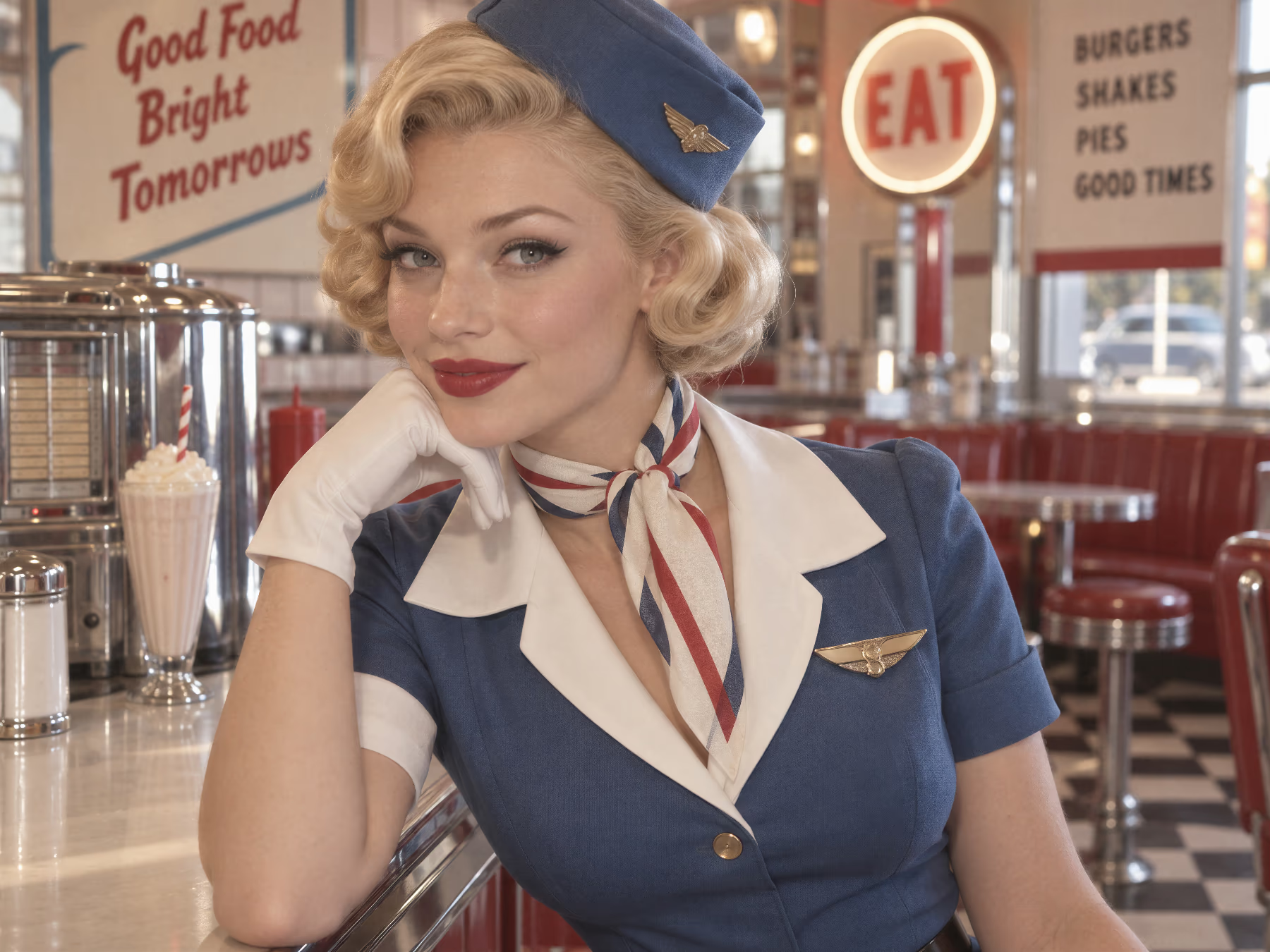
A 1950s air hostess leaning on a diner counter in a navy blue blouse and cap with a white collar, white gloves and a red, white and blue scarf. Before
The same photo after Change Color: the blouse and cap are emerald green with their folds and shadows intact, while the white collar, gloves, scarf, gold wings and buttons keep their own colors. After

A new Sunrays

Sunrays has been rebuilt from scratch. It now finds the sky and works out the depth of the scene, then lights the scene from them: beams form where the light breaks through a tree's crown, a window or a skyline, buildings and trees cast shadow wedges through the lit air, and the sun hides behind whatever stands in front of it. A sun below the horizon lights nothing. The dialog opens with a short time-lapse sunrise, and the sliders are now Light, Rays, Sunburst, Reach, Sun size, Glare and Depth. Drag the sun on the minimap or on the picture. What you see while dragging is what you get when you apply. Clouds don't hide the sun yet.

Straighten stands buildings upright

Shoot a building or a room with the camera tilted up or down and the walls lean toward each other. When Straighten's Building verticals choice finds where those lines meet, it now corrects the perspective too, so the walls stand upright and parallel, and crops to the largest clean rectangle inside. A Verticals slider dials the correction back if a full one looks too stiff.

Expression catalog

Expression Matrix has a new Catalog tab next to the sliders, with whole expressions you can give a face: Smirk, Wink, Skeptical, Big laugh, Gasp, Pout, Grimace, Smolder and Savoring. Pick one and the live preview shows it on your photo, with an Intensity slider to take it up or down. It carries the expression, not the catalog face's shape. Import adds your own, from a file or an open picture: pick the face and give the expression a name.

When you apply, you now see the result against the photo first, with the before/after divider. Keep as new layer, or Discard and adjust to go back to where you left off.

Next steps on AI results

After Replace with AI, the frame stays on the result with what you're likely to do next: Auto-Align (only when the result has drifted off the picture), Harmonize, Match grain, a Fade slider and Try again. Remove Object, Expression Matrix and Harmonize keep a frame too, with Match grain and, for the last two, Fade. The Undo button on the frame's tab takes back the whole operation. When the model drew fewer pixels than the area it filled, the frame says how much it was enlarged.
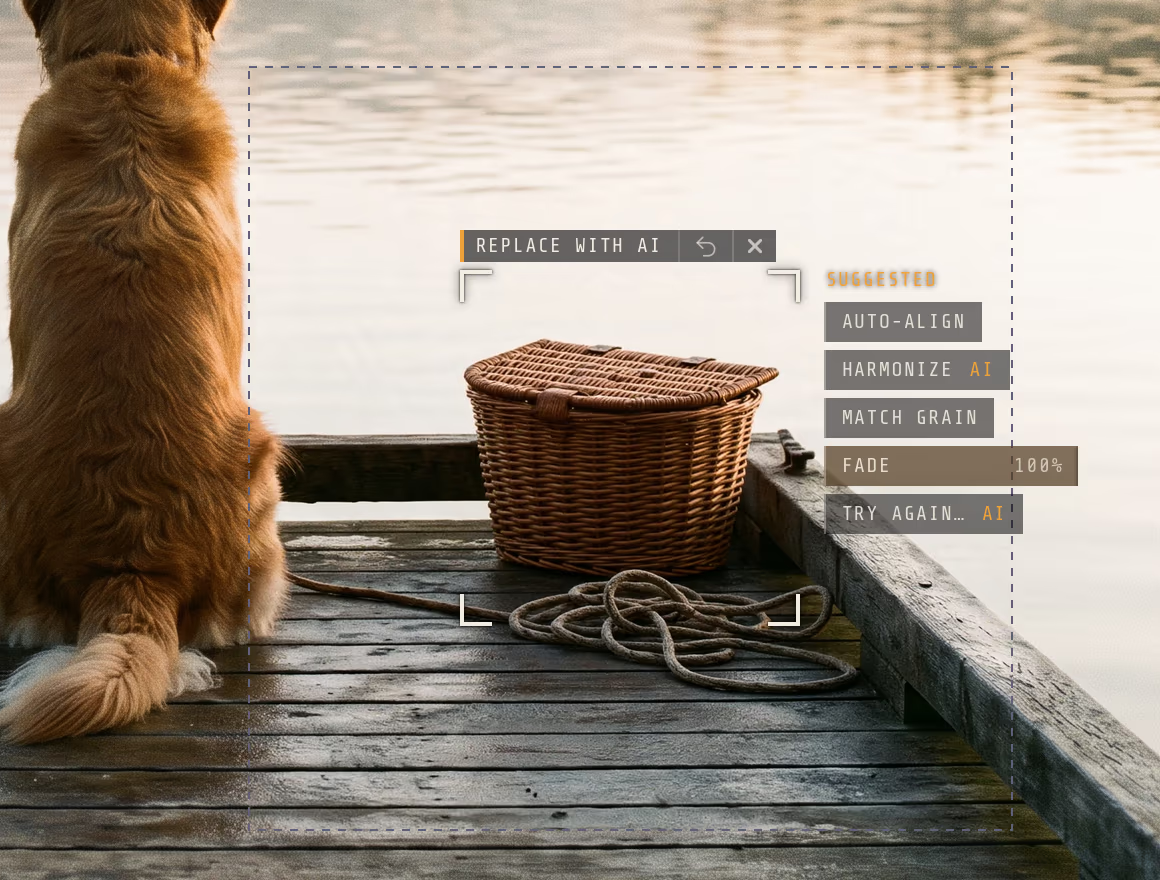
A golden retriever on a lake dock beside a wicker picnic basket that Replace with AI put where a red bucket stood. Corner brackets frame the basket under a Replace with AI tab with Undo and close buttons, and a Suggested list beside it offers Auto-Align, Harmonize, Match grain, a Fade slider at 100 percent and Try again.

A tour, and tips when you need them

On a new install, the first picture you open offers a short tour of where things are: the modes, the action bar, search, undo, layers and feedback. With a picture open, take it again from Help ▸ Take the Tour or by searching for “tour”. A few ideas get a one-time tip the first time you meet them, such as an edit landing on its own layer, a live filter, or the Spot Healing methods. Turn the tips off in Settings.
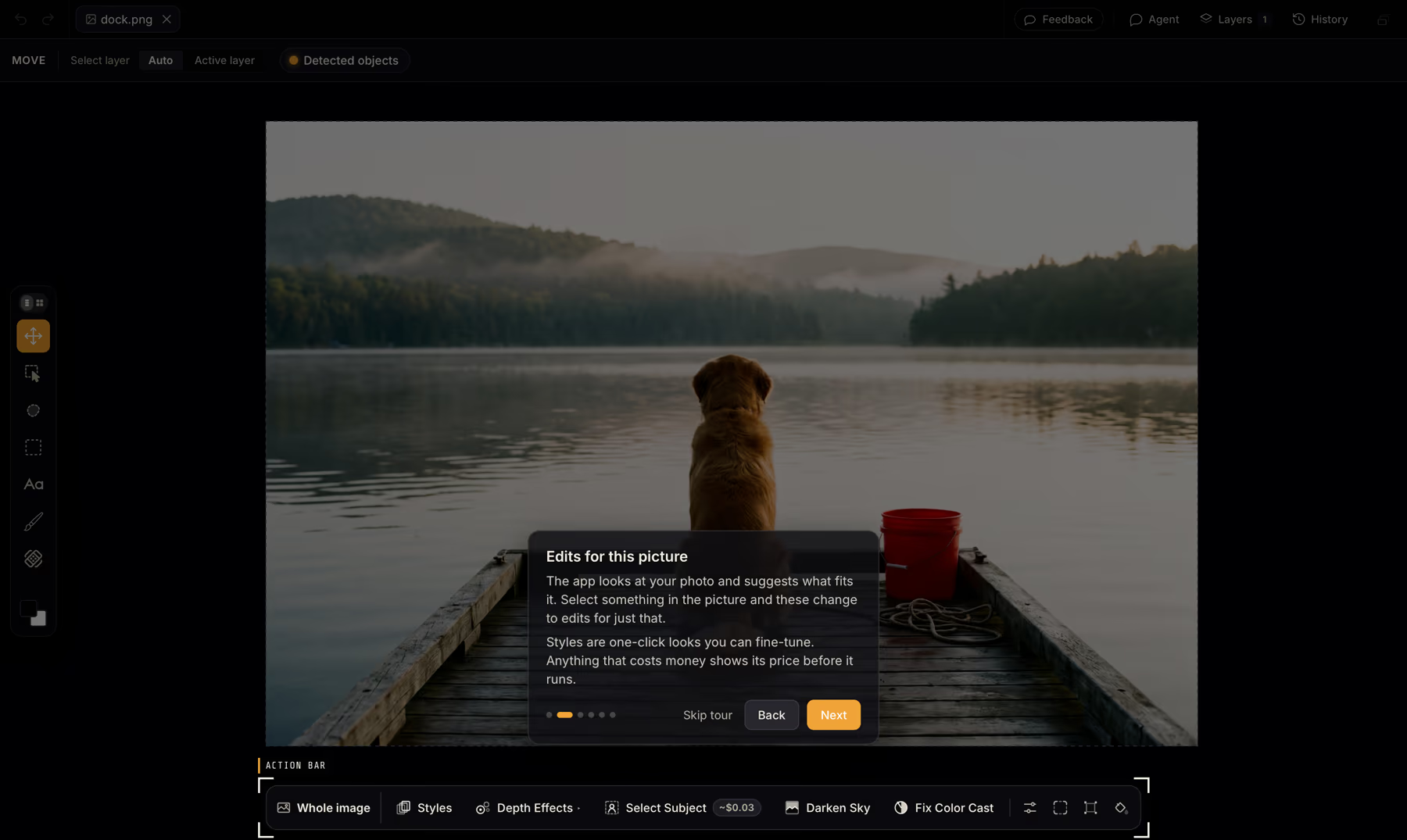
The first-run tour on a photo of a golden retriever on a lake dock: the picture is dimmed, the action bar at the bottom is spotlit with corner brackets and an Action bar tab, and a card above it titled Edits for this picture explains the suggested edits, with Skip tour, Back and Next buttons.

Improved

  • Pick the resolution of AI edits

    Replace with AI, Generate, Remove Object, Declutter Room and Relight Scene have a resolution choice next to the model, and the price follows it. By default they pick the smallest size that covers what you're editing, so small edits cost less. Set the largest they may pick in Settings ▸ AI Models ▸ Default AI resolution. The model picker tags the models that render at 4K and up.

  • Grain Match

    A new live filter under Effect ▸ Detail gives the layer below it the grain of the photo beneath, only where the layer is smoother than the photo. Remove Object, Liftoff, Depth Blur and Miniature now add it as a live filter instead of baking noise into their result, so you can tone it down or remove it.

  • Relight Scene and depth effects find the person first

    Relight Scene's aim point and the automatic focus in Depth Blur, Tilt-Shift and Relight Depth now start from the main face in the picture, so an over-the-shoulder shot focuses on the person you're looking at, not the shoulder in front. Relight Scene's rim light now lights the edges of hair, ears and shoulders instead of drawing a glow around them, and it lights the whole picture after an earlier edit. The image readout counts faces right away.

  • The tab bar is the title bar

    In the desktop app, the tabs move up into the window's title bar, beside the window buttons and undo and redo. Tabs are rounded, and with more than fit, arrows at the edges count the hidden ones. Scroll to move along them.

  • More room for the picture

    The status bar shrinks to a small zoom pill, and the action bar moves down beside it. Messages appear in the bottom-right corner instead, and Feedback is a button in the tab bar.

  • Open lots of photos at once

    Tabs you aren't looking at are put to sleep on disk when memory runs short and wake up when you switch back. Opening a big batch reads only as many as fit and loads the rest when you first visit them.

  • Sample photos to try

    Sample photo on the Welcome screen opens a choice of twelve photos, nine from Unsplash credited to their photographers and three AI-generated portraits labeled with the model that made them.

  • Object Selection takes a rectangle

    Switch the drag between Freehand and Rectangle. A rectangle drag selects the object inside it, live as you drag, and can start off the edge of the picture. A long freehand scrub now counts its whole path.

  • Curves gets eyedroppers

    Curves has black, gray and white point eyedroppers, and black and white input handles under the graph, as in Photoshop.

  • Darker colors that keep their texture

    Hue / Saturation / Lightness has a Curve lightness option that darkens shadows more than highlights, so a sweater taken to charcoal keeps its knit, and a Colorize option that tints the whole picture one hue.

  • Histograms show the detail

    Levels, Curves and the Histogram card let a tall spike, such as a flat sky, run off the top instead of squashing the rest of the chart.

  • Drag shadows and catchlights on the picture

    With Drop Shadow or Long Shadow open in Layer Effects, drag anywhere on the picture to move the shadow. In Face Retouching, drag the catchlight to place it in the eye.

  • Brush gestures

    Shift-drag paints a straight horizontal or vertical line with every brush. ⌃⌥-drag on the picture sets the brush size (left and right) and hardness (up and down). Burn and Dodge are now called Lighten & Darken.

  • Spot Healing asks before a big area

    Healing a large area asks whether you'd rather use Remove Object. A heal in progress can be cancelled from its frame, and one that changed nothing says so.

  • See the price before a one-click edit

    Declutter Room, Remove Object, Liftoff and Select Subject spend as soon as you click them. Their action bar buttons always showed the price; from a menu or a keyboard shortcut they now ask first, with the model, the resolution and the price on the button. Tick Don't ask again to skip the question for that edit, and bring it back in Settings ▸ General.

  • Region Selection fills what you trace around

    A new Fill holes switch, on by default: trace around something and the inside joins the selection (in Subtract, it leaves). A trace that ends near where it started closes itself.

  • Every AI edit can be stopped

    Remove Object and Liftoff have a Cancel on their progress card, and every AI edit now gives up after a time limit instead of running forever. On DepthField Cloud, a run that hits the limit isn't charged.

  • Layers and the Move tool

    Deleting a layer that others are clipped to deletes them with it, in one undo step. The Move tool has a Detected objects switch, and dragging a layer clears the selection. After Liftoff, the Move tool is ready to move what it lifted.

  • Smaller touches

    Preferences is now called Settings, as elsewhere on macOS. Tool fly-outs open when you hover over them. Depth Blur and the other depth effects, Relight Scene and Video Loop are marked Experimental.

Fixed

  • When the graphics card ran short of memory, filters such as Face Retouching stopped working until you restarted the app. They now recover by themselves.
  • Spot Healing's AI method, when it runs on your Mac, no longer leaves blobs or rings on small spots.
  • A Remove Object stuck at the AI provider no longer shimmers forever.
  • AI edits no longer fail when the AI provider takes a little longer to finish them.
  • The old picture no longer flashes on the canvas after an upscale.
  • Autosave no longer reports a failed save when a save is just slow.
  • Leaving Straighten, Face Retouching or Expression Matrix no longer makes the picture jump. It glides back into place.
  • Object highlights no longer linger on the old picture after an edit changed it.
  • Detected objects no longer include text and numbers, which could not be selected cleanly.
  • Relight Scene after an Expression Matrix edit no longer works on the face alone.
  • Long strokes with Lighten & Darken, Clone Stamp and Spot Healing no longer slow down as they grow.
  • An Object Selection you just made is no longer lost when you move the pointer over a detected object, or start a second one while the first is still working.
  • Water and smoke in Video Loop no longer replay a splash or a puff of smoke on every loop; they move calmly and loop smoothly.
  • Live filters with a mask no longer glitch along the bottom edge of the picture.
  • Refine with AI's button in the action bar now shows its price.
0.8.1

Bug fixes

The menu bar no longer gets stuck grayed out, the 3 variations switch no longer quietly stays on, and object highlights keep their shape after an edit.

Fixed

  • The menu bar no longer stays grayed out for the rest of the session after the “Recover unsaved work?” prompt or a trial screen closes.
  • Image ▸ Transform and Layer ▸ Transform in the menu bar are now both enabled when they should be. Before, only one of them was.
  • Turning on 3 variations in Generate with AI, Replace with AI, Extend Canvas or Replace Background no longer keeps it on for every later run. Each dialog now opens on Single, so you only pay for three when you ask for three.
  • Hovering an object after an edit, such as moving a copied person to a new layer, now highlights that object’s own shape instead of a stretched outline of another one.

0.8.0

Straighten and Object Detection

Straighten finds the horizon and levels your picture, DepthField Photo now spots and names the objects in a photo so you can pick them with a click, the menus move into the macOS menu bar, and Background Blur gets portrait-mode edges.

New

Straighten

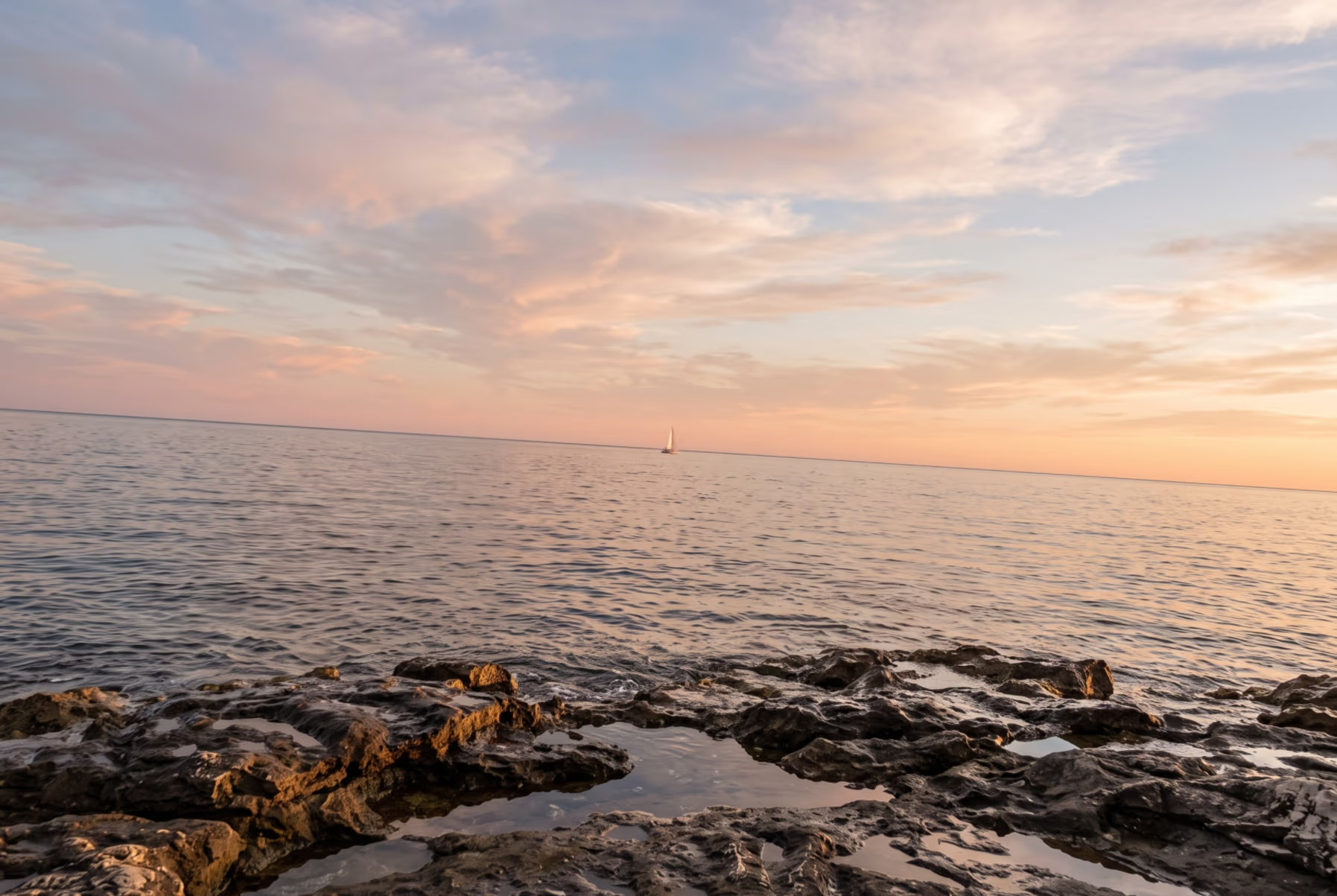
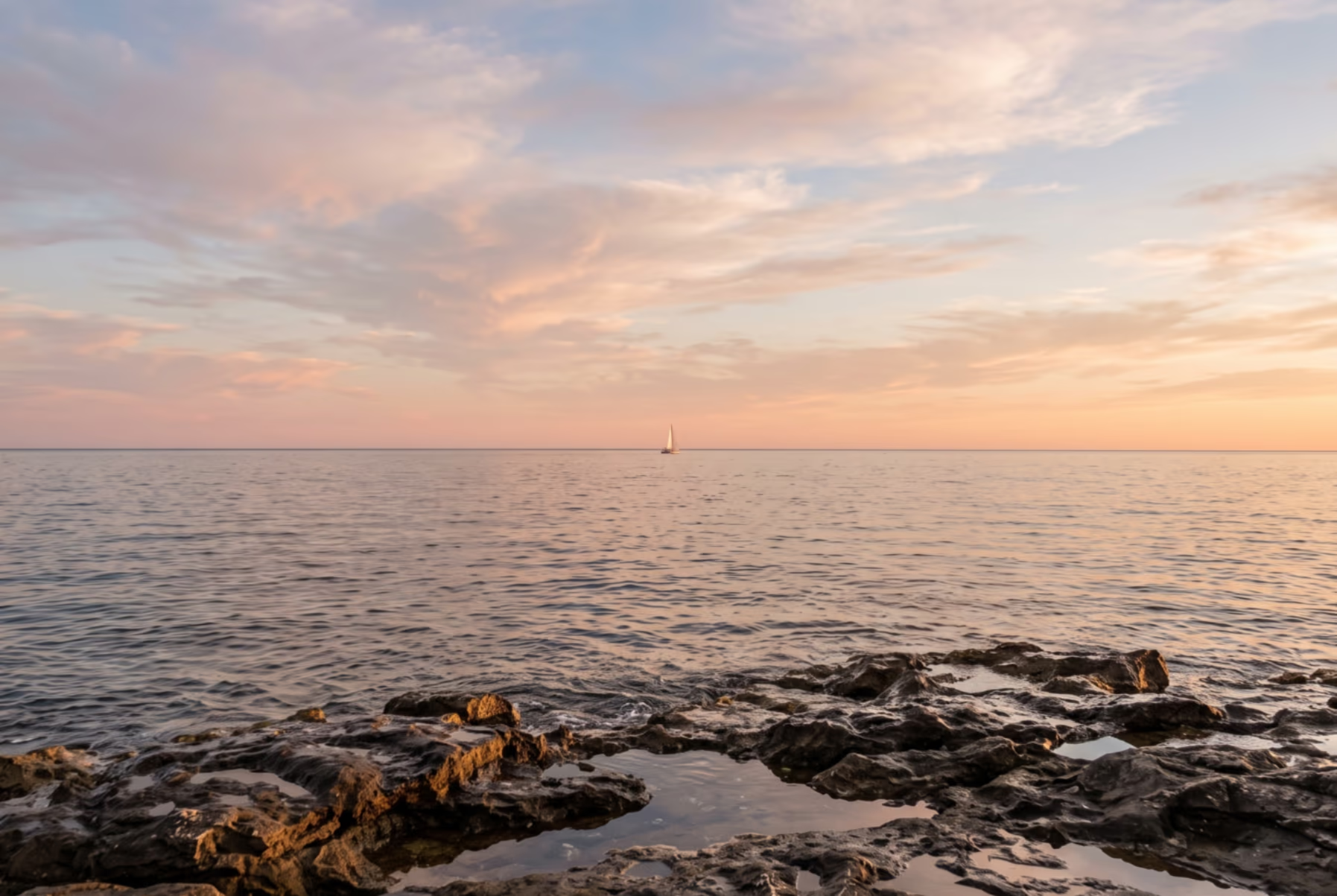
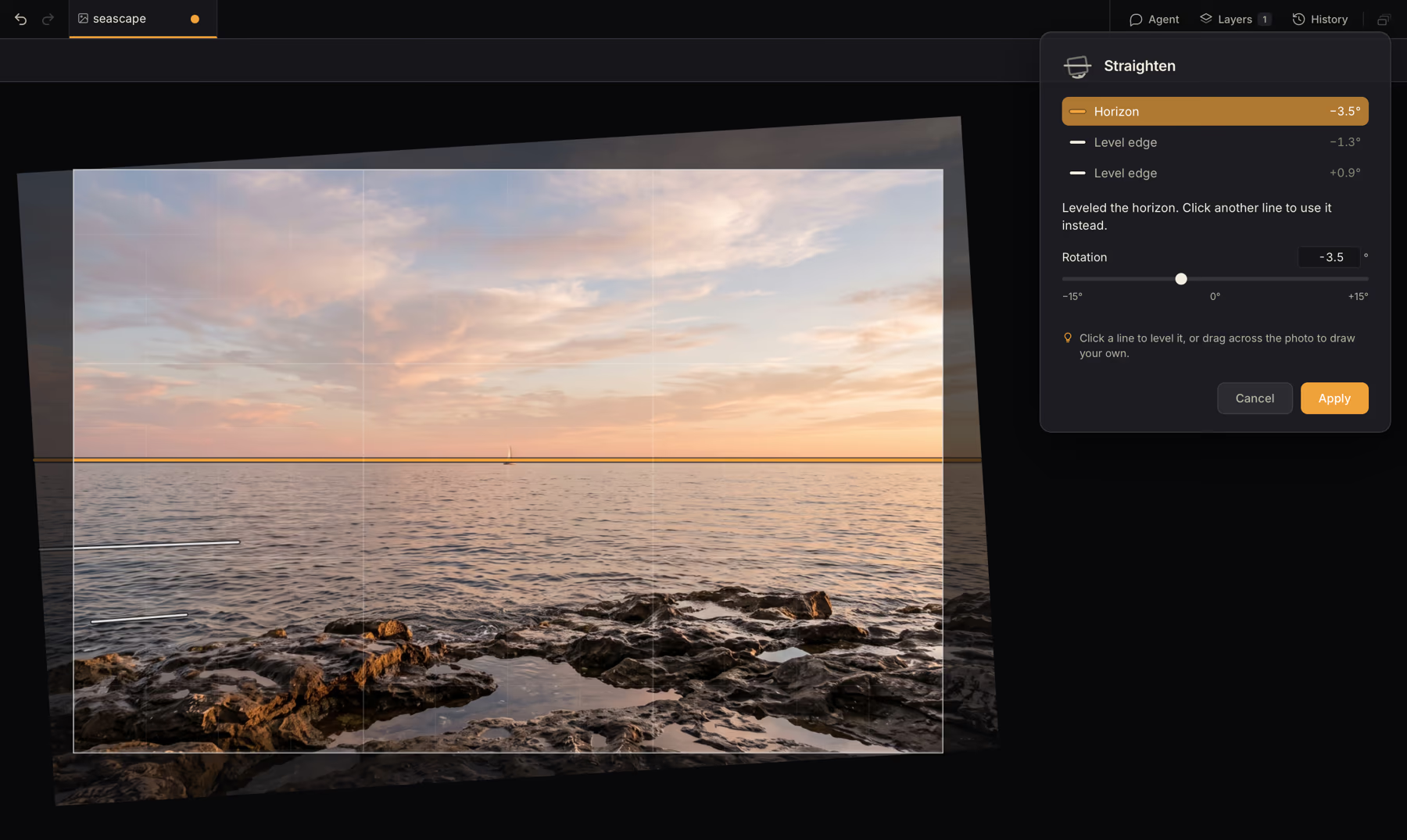
Level a crooked horizon in two clicks. Straighten searches your picture for lines that should be level or plumb, like a horizon, a shoreline or a door frame. When it finds a clear one, the picture turns level with the crop shaded, so you can see what you'll keep. Apply turns every layer with it and crops the corners away, in one undo step.

A tilted seascape at sunset with the Straighten dialog beside it: the horizon is the chosen line at minus 3.5 degrees, the picture has turned level, and a shaded border shows what the crop will cut away. A Rotation slider and Cancel and Apply buttons are below.

If it picked the wrong line, click another one on the picture, draw your own along something that should be level, or drag the Rotation slider. When the camera was tilted up at a building, the verticals lean toward each other and no single one can be plumb: Straighten makes the middle upright and tells you so. With no clear horizon, as in a field of flowers or a forest, it shows the lines it found and leaves the picture alone. Text and shape layers become pixels when you apply.

A sunset over the sea shot with the camera tilted: the horizon runs downhill from left to right Before
The same photo after Straighten: the horizon is level and the corners are cropped away After

Find it under Image ▸ Transform ▸ Straighten…, in the action bar's Transform group, or with ⌘K (try “level”, “horizon” or “tilt”).

Object detection

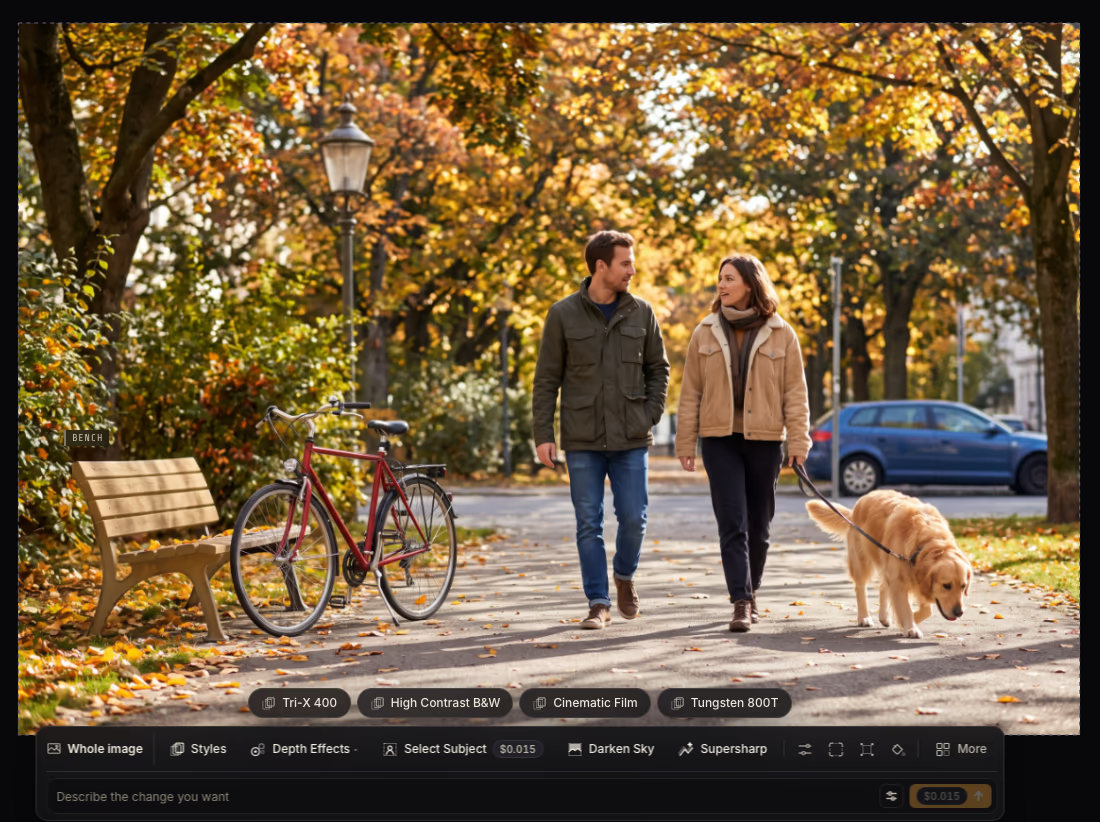
Your picture, already sorted into things. When you open a photo in the desktop app, DepthField Photo now looks for the objects in it and names them, people, animals and vehicles first. Objects appear one by one as they're found, each with a brief glow and its tag. It runs on your Mac and costs nothing, and the image readout shows how far it has got. Move the pointer over the picture with Object Selection or Move and the object under it is tinted and tagged with its name. Click it, or its tag, to select it.

An autumn park photo of a man and a woman walking a golden retriever past a red bicycle and a wooden bench. The pointer rests on the bench: it is lightly tinted and tagged BENCH.

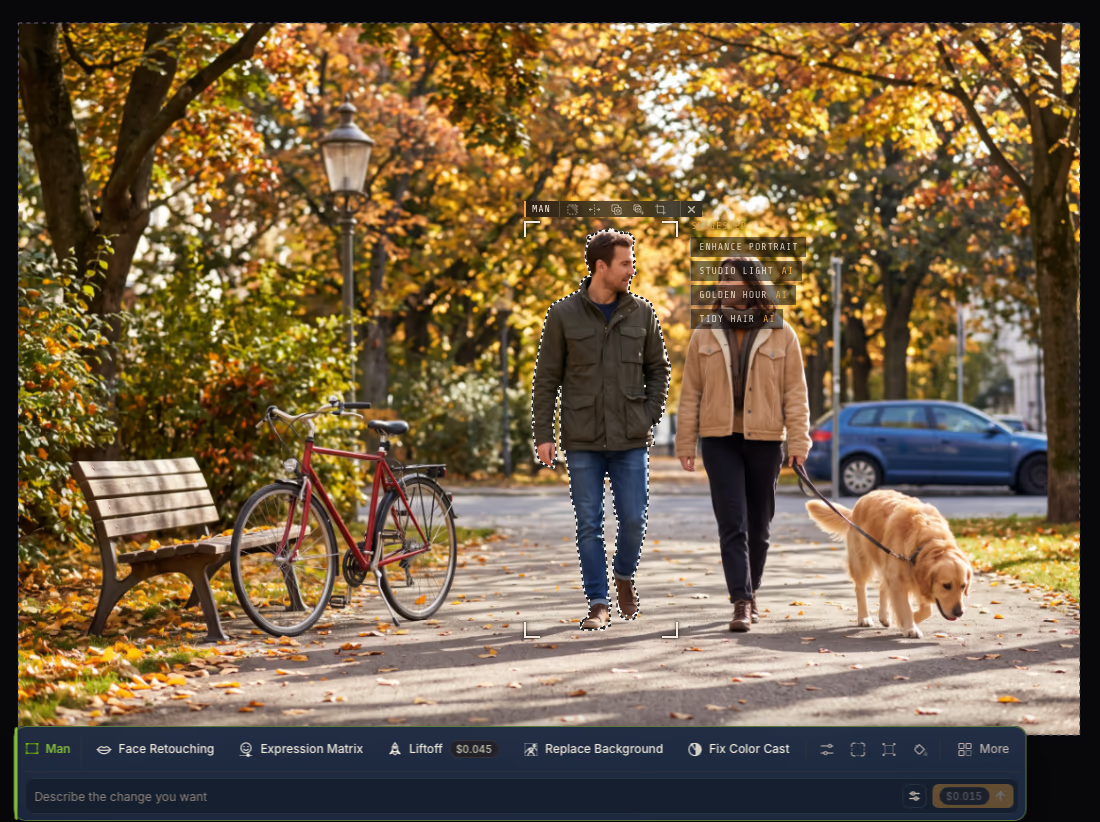
Shift-click adds another object to the selection and Alt-click takes one out. Every pick gets the same edge refinement as Object Selection, and a selection of several objects gets a name of its own.

A named selection gets a frame of its own: corner brackets, a tab with the common selection tools and Deselect, and a short list of edits that suit what's inside, with the AI ones marked. For a person, that's Enhance Portrait, Studio Light, Golden Hour and Tidy Hair. View ▸ Smart Selection Frames turns the frame off, and the suggestions go back above the action bar.

The same park photo with the man selected: a dashed outline around him, corner brackets and a tab reading MAN with selection tools, a list of suggested edits (Enhance Portrait, Studio Light, Golden Hour, Tidy Hair) beside him, and the action bar below showing Face Retouching, Expression Matrix, Liftoff, Replace Background and Fix Color Cast.

Improved

  • The menus are in the macOS menu bar

    In the desktop app, File, Edit, Layer and the rest now live in the menu bar at the top of the screen, next to the app menu, Window and Help. The bar across the top of the window is gone, and Search is now a button in the tab bar. Shortcuts work as before.

  • Select several layers at once

    Shift-click or ⌘-click layers in the Layers panel and in Exploded Layers to select more than one. Right-click to group, duplicate, hide or show, or delete them together.

  • Styles take your selection as their subject

    With something selected, every Style treats the selection as the subject and the rest as the background: the suggestion chips beside a selection, the Styles strip and its tile previews, Templates and the agent. Enhance Portrait on one person in a group photo now retouches that person's face instead of the largest face in the picture, and styling a second person stacks beside the first instead of replacing it.

  • Cleaner subject edges in depth effects

    Background Blur, Fog and Relight Depth have a new Subject edge section. It snaps the depth map's soft edge to Apple Vision's cutout of the subject, or to your selection, with Grow / Shrink and Feather. With it, Background Blur works the way a phone's portrait mode does: it blurs the background behind the subject and puts the subject back, so a night portrait no longer keeps a bright rim around the hair and legs. Select ▸ Subject uses the same refinement and now picks up parts of the subject the first pass left out.

  • Blurred and removed areas keep the photo's grain

    A real lens blurs before the sensor adds its noise, so an out-of-focus background is as grainy as the subject. Background Blur now puts the photo's grain back into the blurred areas instead of leaving them glassy, and Remove Object's fill is grained to match too.

  • Expression Matrix previews flow

    When you move a slider, the face now glides into its new expression instead of swapping frames, and returning the sliders to the original glides back into the photo. The bar labels are slanted so long names take less room.

  • Faces are framed on the picture

    Face Retouching and Expression Matrix share one face picker, and the faces on the picture wear the same bracket frames as selections. Face Retouching's view options now start fresh each time you open it, its before/after is confined to the face you picked, and a single face is framed too.

  • Dialogs next to the picture clear the canvas

    While a dialog that sits beside the picture is open, the selection outline, the AI overlay, Edit Mask and the on-canvas handles of Crop, Gradient Fill, Extend Canvas and other tools step aside, so you see the picture and nothing else.

  • Depth effects start sooner after launch

    The depth model behind Background Blur, Fog and the AI progress overlay now loads in a fraction of a second instead of 8 to 10 seconds, so the first depth effect after launch doesn't wait. The app also clears out the old compiled depth cache, 0.4 GB or more, from disk.

  • See what a session has cost

    The image readout has a Spent this session row with what AI edits on this picture have cost this session. If some of it ran on your own API keys, it says Estimated spend, because list prices are not an invoice.

  • Exports say where the file went

    When an export finishes, the card names the folder it landed in and has a Show in Finder button.

  • Film stocks have their own Styles category

    The film looks are no longer mixed in with Vintage Film, so a particular stock is one click away.

  • Copy Visible to New Layer

    A new Edit command copies what you can see inside the selection straight onto a new layer, in one undo step.

Fixed

  • Spot Healing on an empty layer, or past the edge of a layer's content, no longer leaves a black box or blob. It now heals from the picture beneath and writes only the fill into the layer.
  • The AI progress overlay no longer shows dark gaps along blurred edges, such as a defocused backdrop behind a subject near the edge of the picture.
  • The “Opened at full resolution” notice no longer appears on every phone photo. It shows only above 28 megapixels.
  • Tab names no longer lose the tails of letters like g, j and y.
  • Pressing Enter or Esc in a dialog while Crop is active no longer also commits or cancels the crop.

0.7.0

Expression Matrix and Exploded Layers

Exploded Layers pulls your layers apart into a stack of glass plates you can reorder by dragging, Expression Matrix changes a face's expression with a live preview, depth effects land on a layer of their own, and Upscale takes big photos with a new model, SeedVR2.

New

Exploded Layers

See your picture as the stack it is. Exploded Layers tips the canvas into a stack of glass plates, one per layer, so it's clear at a glance what sits on top of what. Scroll to move through the stack, eight plates at a time, or use the minimap to jump to any layer. Click a plate to select that layer, double-click to go back to the canvas with it selected, or right-click for the same menu as in the Layers panel.

Drag a plate up or down to reorder: it follows your pointer while the others make room, and Esc puts it back. A card beside the stack edits the selected layer: visibility, Opacity, Blend mode, its effect switches and its name. Anything with settings of its own, like a live filter or an effect, takes you back to the canvas and opens its panel. Merge Down (⌘E) and Duplicate Layer (⌘J) work here too, and Flatten Image folds the stack back into one picture.

Each plate shows its layer on its own, so blend modes, clipping and effects don't show on the plates. Open it from the button at the right of the tab bar, with Shift+L, View ▸ Exploded Layers or ⌘K. It needs two or more layers.

Expression Matrix

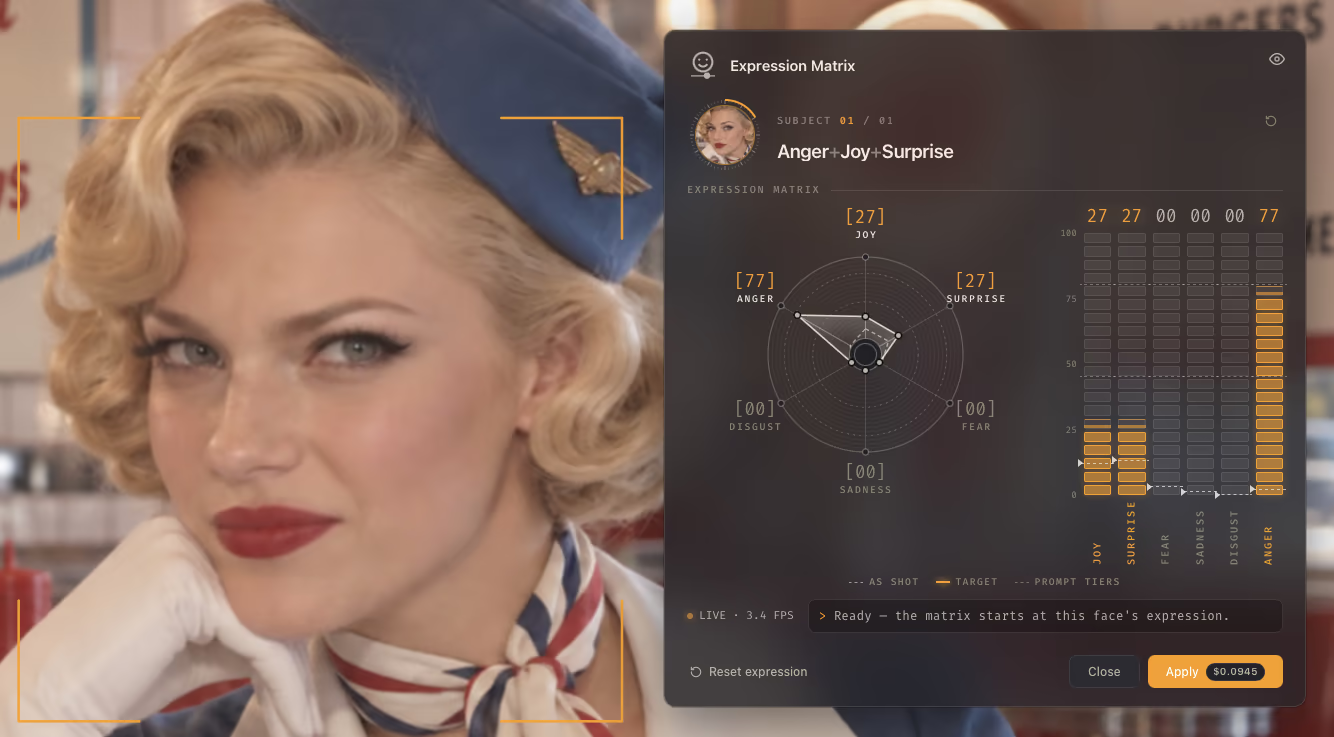
Change how someone feels in a photo, and watch it happen. Formerly the Emotion Editor, Expression Matrix finds every face in your picture: click one and its sliders start at the expression it has now. Drag Joy, Sadness, Anger, Fear, Surprise or Disgust and the face re-renders as you move, free and on your own Mac, while a radar beside the bars shows the blend you've dialed in.

When it looks right, Apply sends the face to an AI edit model and adds the result as a new layer with a mask, so your original is untouched. The live preview is tuned against that model's own renders, so what you see is close to what Apply gives you. Only Apply spends, and the button shows the price. Find it under AI ▸ Enhance or with ⌘K; the first time you open it, it downloads its preview models (270 MB).

Close-up of the portrait with a scowling, slightly smiling expression, and the Expression Matrix dialog beside it: a radar chart and six vertical bars for Joy, Surprise, Fear, Sadness, Disgust and Anger, set to Anger 77, Joy 27 and Surprise 27, a LIVE preview badge, and an Apply button with its price.

Improved

  • A new look for AI progress

    While an AI edit runs, the area it is working on is lightly dimmed and a fine hex mesh drapes over the picture, following its depth, lit by a wave that sweeps across it. A frame of corner brackets shows the edit's name and phase, a progress bar, the percentage and the time elapsed. It replaces the old dotted shimmer, and Video Loop uses it too.

  • Clone Stamp shows what it will stamp

    Once you've Alt-clicked a source, the brush ring fills with the pixels the next stamp would lay down, at the brush's size, hardness and opacity, so the first stamp lands where you want it.

  • Depth effects add a layer instead of overwriting

    Background Blur, Miniature, Fog, Sunrays and Relight Depth now put their result on a new layer directly above the source, with its mask and clipping carried over, instead of replacing the source's pixels. Run one again and it replaces its own earlier result rather than stacking another.

  • SeedVR2 for large photos in Upscale

    A new upscaler that takes the big photos the others refuse. An 80-megapixel result costs about a quarter of what Topaz charges for the same size.

  • Upscale tells you what a model can't take

    Each upscaler has a largest source it accepts. One that can't take your photo is now greyed out in the model list with the reason, Help me choose skips it, and the button is disabled, instead of the run failing or quietly coming back smaller.

  • Hints on the action bar's icon buttons

    Live Filters, Selection, Transform and Fill & Erase now show a hint card with their name and a line about what they do when you hover them. Before, they had only a plain tooltip that was easy to miss.

  • Tool tooltips stay out of the way

    A tooltip on the tool rail no longer covers the next tool, and it goes away as soon as the pointer leaves.

  • The tool rail switch moves to the top

    The switch between the simple mode bar and the full tool rail now sits at the top of both, in place of the logo, and is gone from the tab bar. The full tool rail also stops above the status bar, so a long palette no longer runs behind it.

Fixed

  • Upscale no longer fails with “Could not read the request body” on large photos when you're signed in to DepthField Cloud.
  • A model you picked, such as Ideogram for object removal, is no longer reset to the default when you restart the app.
  • Starting the app offline, or before it has finished starting, no longer signs you out of DepthField Cloud.

0.6.0

Relight Scene

Relight Scene lets you move the light around a photo and render it photoreal, Auto-Align snaps an AI result back onto your picture, and you can now check for updates by hand.

New

Relight Scene with AI

Move the light, not the sun. Place up to three lights on your photo and drag them where you want them: to the side, in front, or behind the subject for a rim of light. Each light has its own Color, Brightness, Softness and Distance, and can shine through leaves, blinds or a window. A sketch of the result updates live as you drag, free and on your own Mac.

When it looks right, Render sends the photo to an AI edit model along with a map of your lights, so the result follows where you put them. 31 looks across Studio, Natural, Interiors and Mood are one click away, each shown as a real render, and hovering one tries its lights on your own picture. If the sketch is already good enough, Keep sketch adds it as a new layer instead, also free.

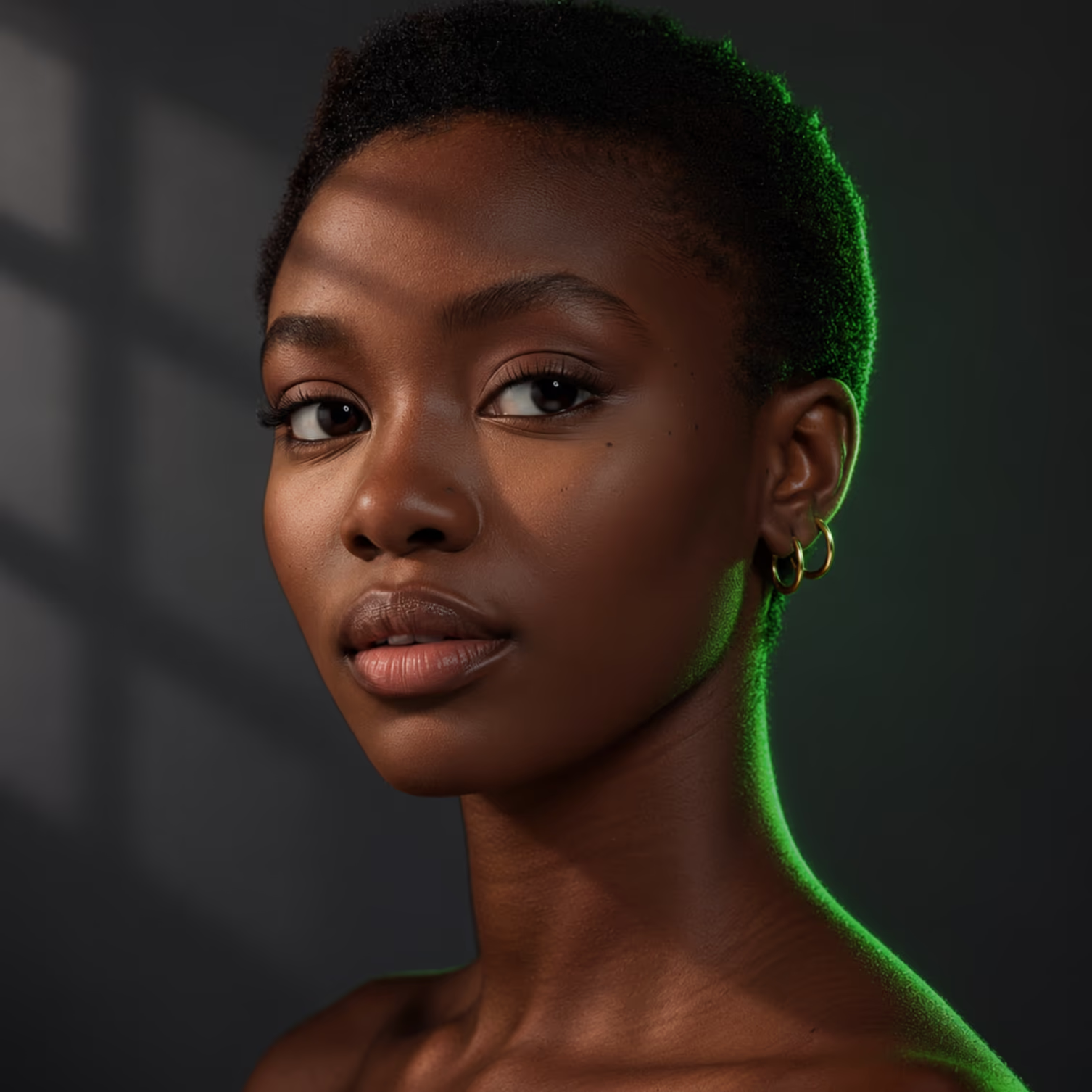
A portrait of a young woman with short hair against a flat gray wall, lit evenly from the front Before
The same portrait after Relight Scene: light falls on one side of her face, a window-blind pattern shows on the wall behind her, and a green rim of light traces her hair, ear and shoulder After

Opening it costs nothing; only Render spends, and the button shows the price. Find it under Effect ▸ Light & Tone or with ⌘K. The older depth-band Relight is now called Relight Depth.

Auto-Align to Image Below

AI models often hand a picture back slightly shifted or stretched, so the result won't sit exactly on your original. Auto-Align measures how far it drifted and moves and resizes the layer to line up with the picture beneath it, then puts it on whole pixels. Nothing is resampled, it's one undo step, and when it can't tell where the layer belongs it says so rather than guessing.

Use Layer ▸ Auto-Align to Image Below, the layer's context menu or ⌘K. The Supersharp, Denoise and Restore Photo previews get an Auto-Align button too, with Undo Auto-Align to put the result back where the model placed it.

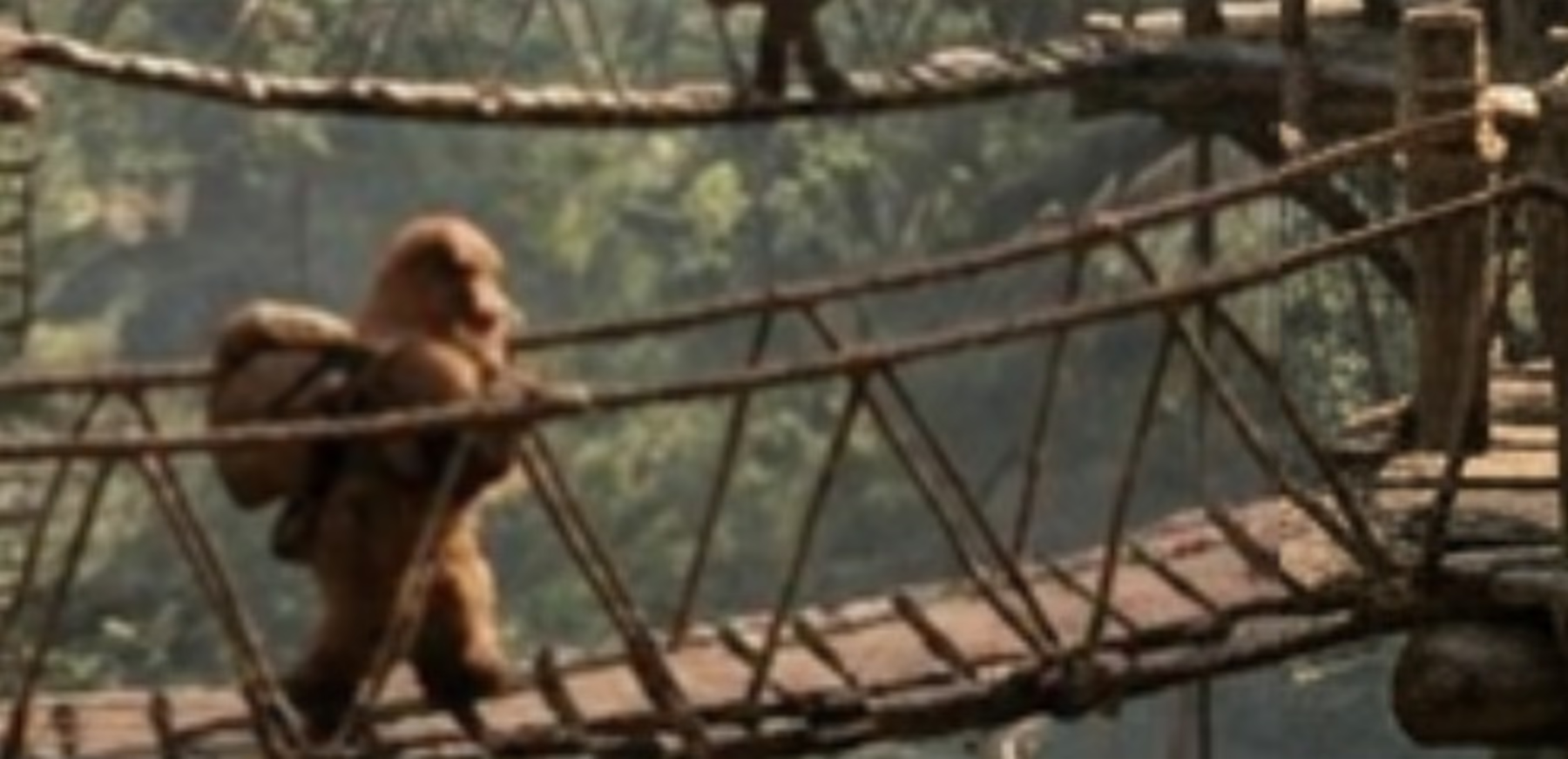
A rope bridge between treetop huts with a small furry creature crossing it. Where an AI-edited layer meets the original, a vertical seam runs through the bridge: the ropes step sideways and the planks break. Before
The same bridge after Auto-Align: the ropes and planks run unbroken across where the seam was. After

Improved

  • Check for Updates on demand

    Check for Updates is now in Preferences ▸ About, the File menu and ⌘K. It asks right away instead of waiting for tomorrow's automatic check, and always answers: the update dialog, a “You’re up to date” notice, or an error.

  • Clearer handles on radial Gradient Fill and Vignette

    The square handle now scales and turns the ellipse together (hold Shift to snap to 15°), and the round handle slides along its axis to change only the shape. Before, one handle did both rotation and shape, and resizing was limited by the current shape.

0.5.0

Long Shadow

Long Shadow gives lettering and cut-outs the flat poster look, Gradient Fill can repeat and dither, and Blemish removal blends in more naturally.

New

Long Shadow

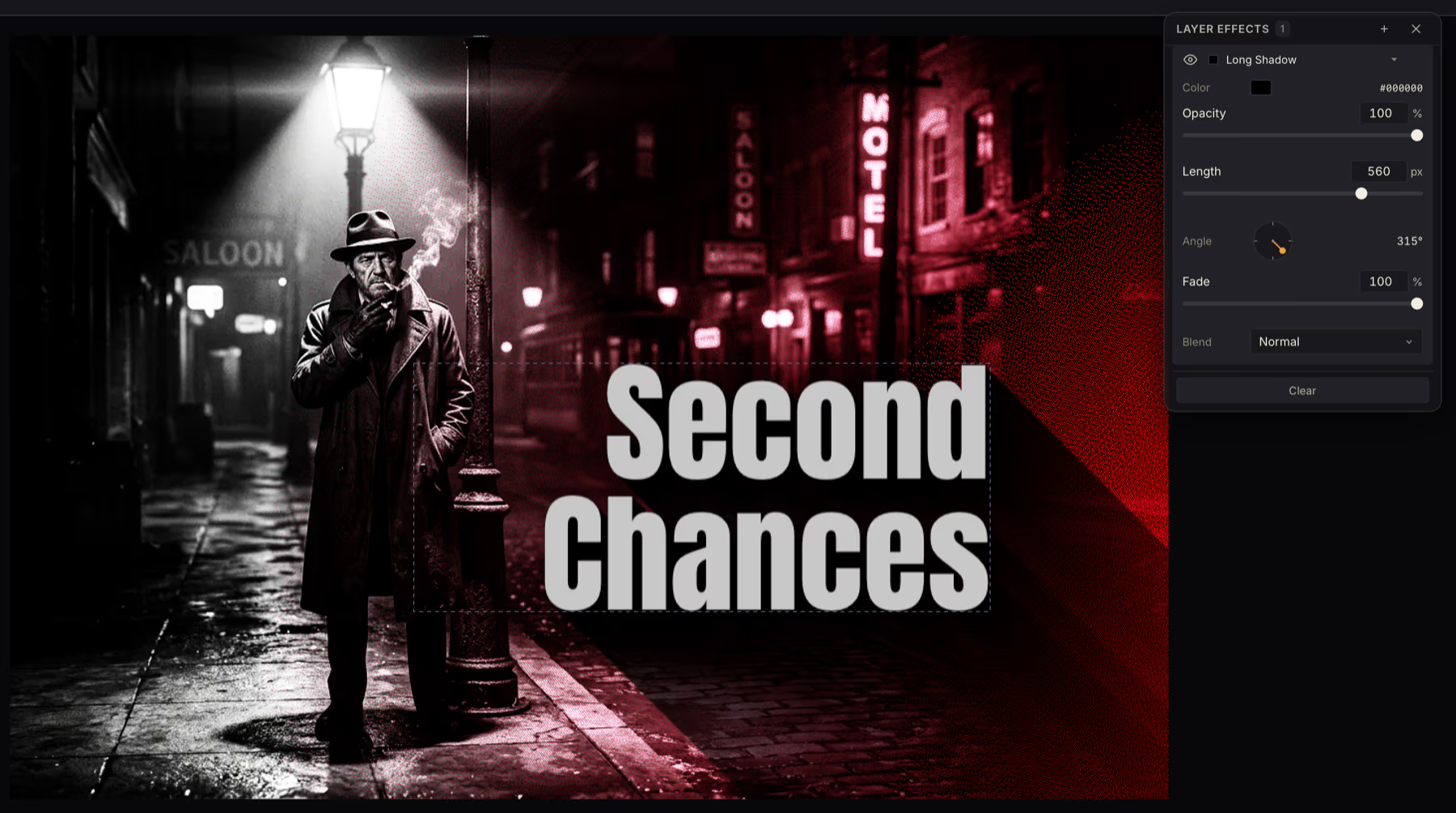
A new layer effect that sweeps a layer's silhouette out along an angle in one flat, hard-edged color: the classic poster and logo look. Set the Color, Opacity, Length, Angle, Fade (how much of the shadow has melted away by its tip) and Blend mode. If the layer has an outside stroke, the shadow is cast by the outlined shape, so lettering with an outline gets the shadow you'd expect.

Length can run right off the canvas, and it stays quick however long the shadow is or however big the document is. Long Shadow works on picture and text layers; add it from Layer ▸ Layer Effects, the Fx button on a layer, or with ⌘K.

A film noir movie poster with the title Second Chances in big gray letters. A long dark shadow from the letters runs down and to the right across a red-lit street, and the Layer Effects card beside it shows the Long Shadow controls: Color, Opacity, Length, Angle, Fade and Blend.

Repeat and Dither for Gradient Fill

Repeat carries the gradient past its end: Once stops there, Repeat starts over, and Ping-pong runs it back again, which is how you get stripes and rings.

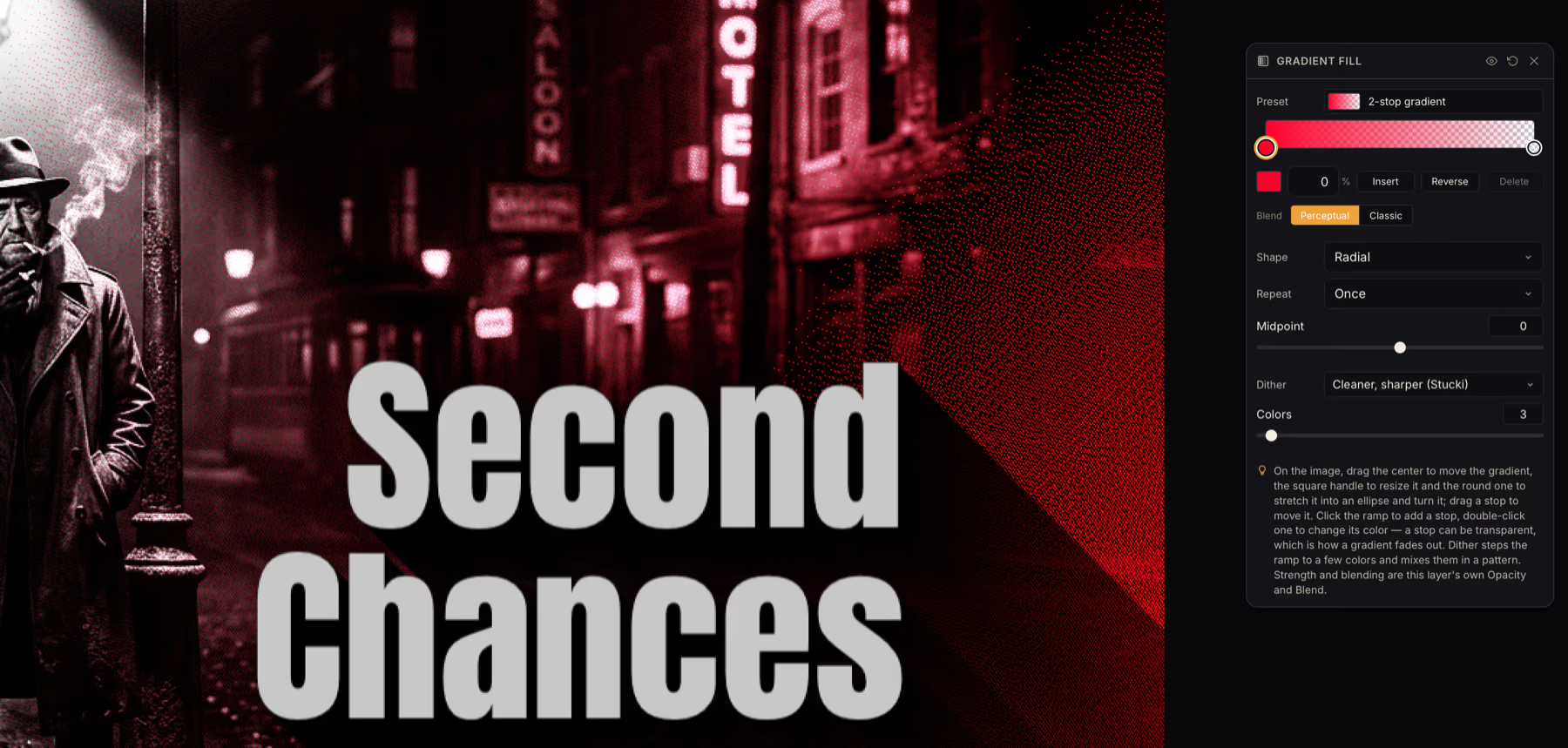
Dither steps the gradient down to a few colors and mixes neighboring steps in a pattern, using the same methods as Posterize: Ordered, Hatching, Classic, Smoother and Cleaner, sharper. Transparency dithers too, so a gradient that fades out turns into a stipple, like the red corner of this poster.

A close-up of the movie poster's right side, where a red radial gradient fades out into a fine stipple of red dots over a night street. The Gradient Fill panel beside it shows Shape: Radial, Repeat: Once, and Dither: Cleaner, sharper (Stucki) with 3 colors.

Improved

  • Blemish removal blends into lit skin

    Face Retouching used to fill each spot with a flat average of the skin around it, which left dull patches on a nose highlight or the shadow side of a cheek. It now carries the surrounding tone across the spot, and never darkens a pixel by more than a hair. It also finds pimples that had merged into one blob, leaves lashes, brows, lips and nostrils alone, and at high sensitivity picks up small, mild dark marks too.

  • Drop shadows and glows sized for the layer

    New drop shadows and outer glows now size themselves to the layer instead of the whole document, so a small logo no longer gets a shadow built for a poster. Drop shadows start stronger, at Opacity 100 and Hardness 25, and the slider that read Blur now reads Size.

  • Merge Down a clipped live filter into a cut-out layer

    A live filter clipped to a layer can now be merged down into that layer even when it has transparent areas or soft edges. A filter that isn't clipped still needs a fully opaque layer, and the message now tells you to clip it.

  • Confirm before replacing a license

    Opening an activation link while a different license is installed now asks first and tells you which license is which. Opening the same one twice asks nothing, and a successful activation takes you to Preferences ▸ License.

Fixed

  • Right-aligned text in an italic or slanted font no longer loses the tips of its last letters at the edge of a fixed-size text box.

0.4.0

Mostly fixes

Film Grain now reaches into the shadows, Spot Healing works with a live filter selected, and local AI models download from our own mirror.

Improved

  • Film Grain that follows the shadows

    Dark areas used to get less grain than midtones. Film Grain now has Shadows, Midtones and Highlights sliders that set how much grain each part of the tonal range gets, and the defaults lean into the shadows the way real film does.

  • Model downloads from our own mirror

    The on-device AI models now download from a DepthField mirror first and fall back to Hugging Face, so a slow or unreachable Hugging Face no longer holds up setup.

Fixed

  • Spot Healing with a live filter selected no longer leaves a black blob, does nothing or blacks out a tile. It now heals the picture under the filter.
  • Guides can only be grabbed with the Move tool. Dragging one no longer moves the layer or picks the object underneath it, and the other tools can start a selection or shape right on a guide's edge.
  • The Cloud connector's endpoint count now includes the video models.

0.3.0

Video Loop and AI provenance

Turn a photo into a looping video where only what you choose moves, read your picture's tones on a movable Histogram, Waveform or Vectorscope, and see how much of an image was made by generative AI.

New

Generate Video Loop (Cinemagraph)

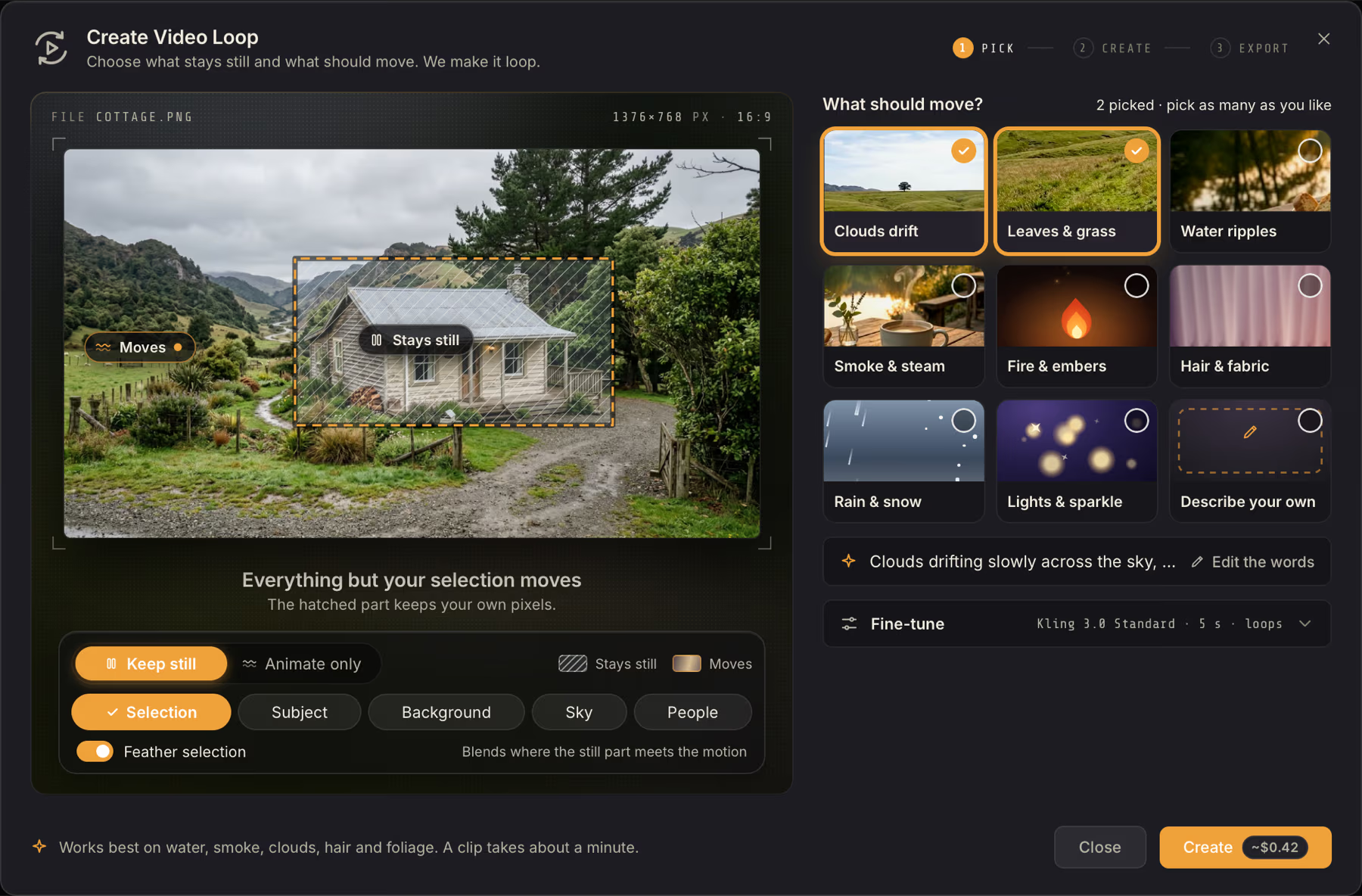
Pick what elements should stay still and what should move, then describe the motion: smoke drifting, water rippling, leaves swaying. Video Loop, also known as a cinemagraph, animates your photo into a seamless clip, then exports it as MP4, WebM, GIF, animated WebP or animated AVIF. The part you froze is your own pixels, untouched, and the clip is lined up with the photo so the background doesn't wander.

Choose the still part from your selection, Subject, Background, Sky or People, or flip it around and pick the only part that moves. Motion cards write the prompt for you, and the dialog suggests a model for what you're animating: MiniMax H3 for smoke, water, fire and lights, Kling for leaves and hair. Feather selection softens the edge between frozen and moving.

Find it under Image ▸ Create Video Loop…, or search for “cinemagraph”, “animate” or “loop” with ⌘K. Pick the model in Preferences ▸ Models. Video Loop runs in the desktop app, and each clip is priced before you start.

The Video Loop dialog open on a photo of a cottage in the hills. The cottage is selected to stay still, and Clouds drift and Leaves & grass are picked to move.

Histogram, Waveform and Vectorscope

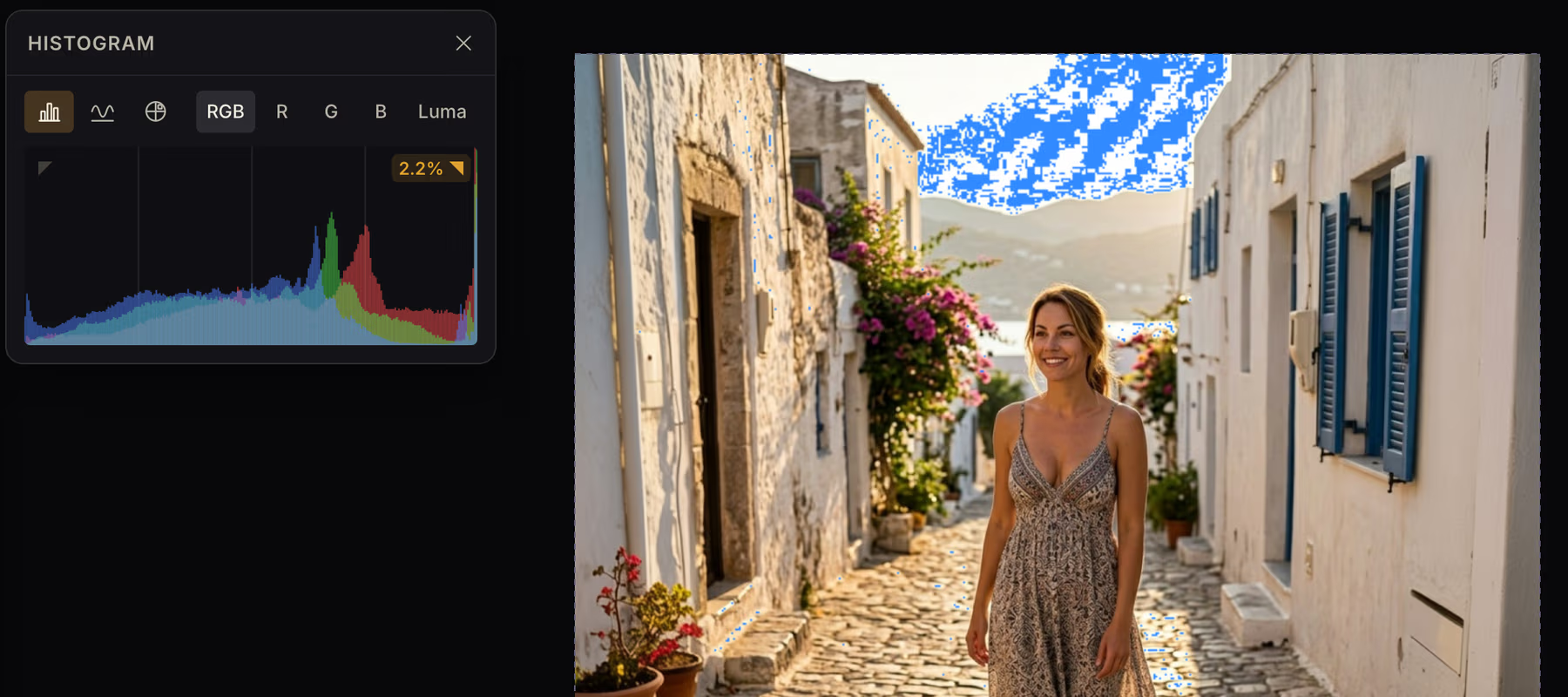
A movable card that reads the picture you're looking at, or just your selection. Flip between a Histogram, a Waveform and a Vectorscope, and switch channels. Clipped shadows and highlights flash on the picture (highlights in blue, since white would vanish on a white sky). While a live filter's panel is open, a faint outline shows where the histogram was before.

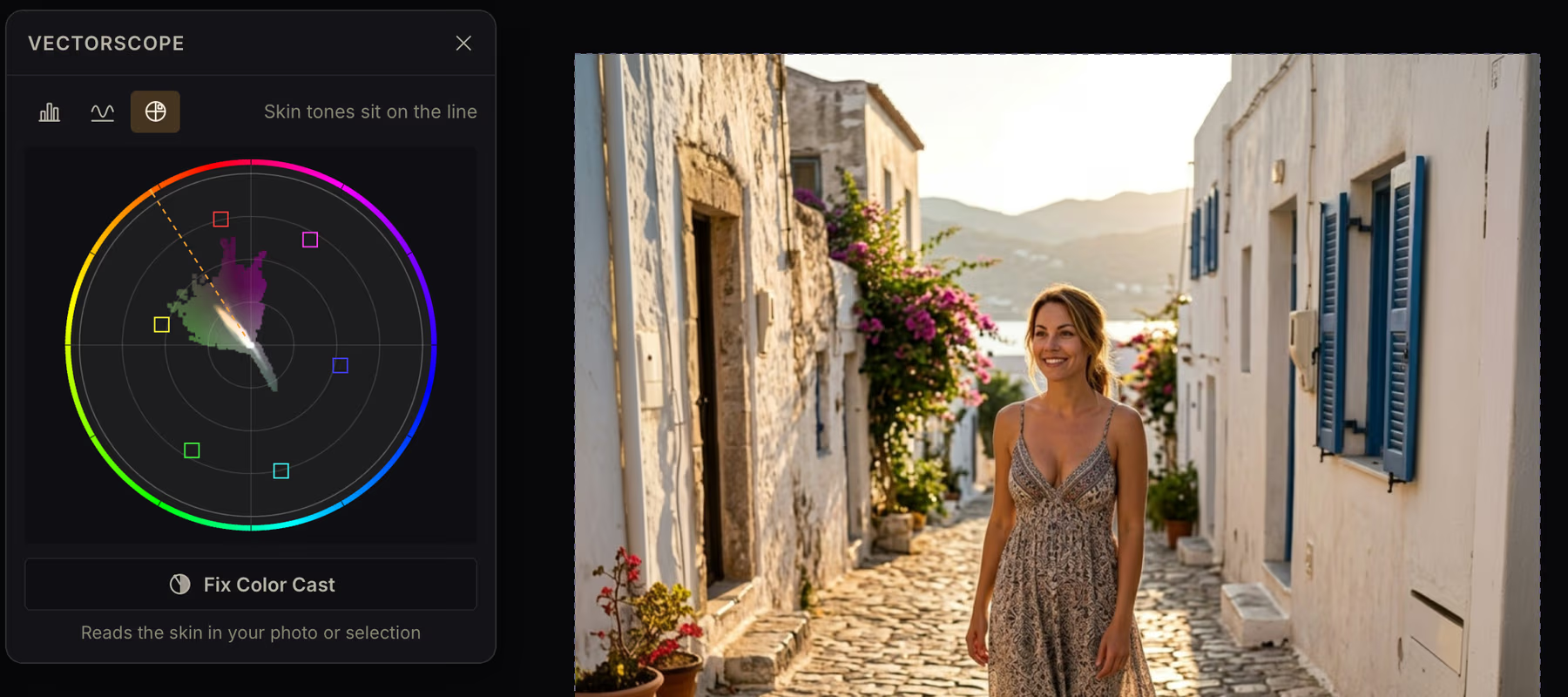
The Vectorscope is drawn like the real instrument, with a hue ring, the skin-tone line and a trace colored by your picture's own hues. A Fix Color Cast button underneath measures the skin in the photo and pulls it onto that line.

Press Shift+H, choose View ▸ Histogram, or use the pin on the Levels and Curves panels.

The Histogram card beside a photo of a whitewashed street at sunset, with the clipped highlights in the sky flashing blue
The Vectorscope card for the same photo, with a hue ring, the skin-tone line and a Fix Color Cast button

See how much of an image was made by generative AI

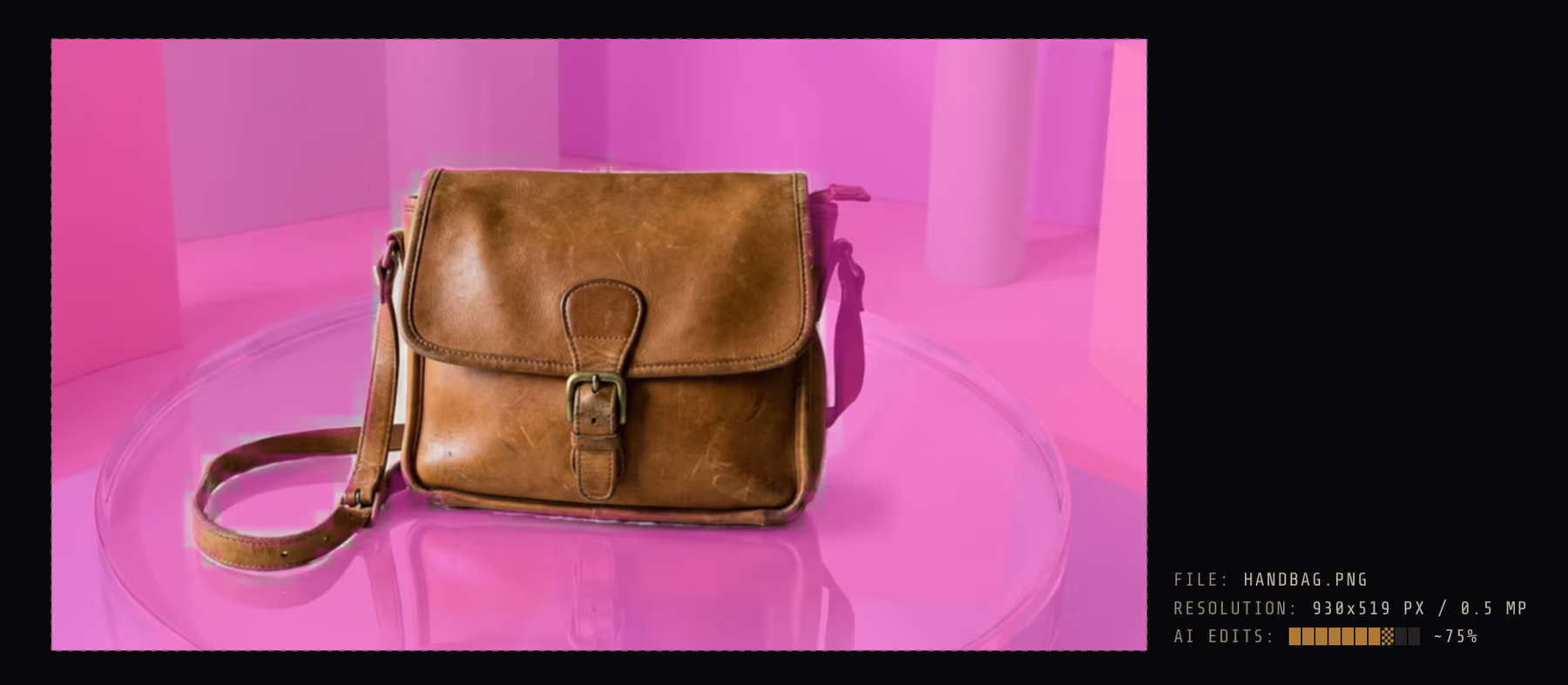
The image info beside the canvas now has an AI edits meter with an approximate percentage. View ▸ AI Overlay shows where the AI pixels are. Flatten, Merge Down and Rasterize Group give the result the origin of whichever layer supplies most of it, so a merged layer that holds AI never reads as untouched.

Open a file and an Origin row tells you what it declares about itself. DepthField Photo now reads C2PA Content Credentials, the signed provenance data cameras and AI tools embed in files, as well as standard metadata, and tells you when a signature is invalid. A file that declares itself AI-generated also counts toward the meter and shows up in the overlay. On the way out, JPEG, PNG and WebP exports are tagged with the standard “digital source type” when they hold AI-made content, and left alone when they don't. Preferences lets you turn that off, or count AI enhancement (Upscale, Supersharp and friends) in the percentage.

A product photo of a leather bag with View ▸ AI Overlay on: the AI-made backdrop is tinted pink, the bag is untouched, and the image info beside it reads AI edits ~75%

Improved

  • A Marquee that follows your keys mid-drag

    Hold Shift, Alt or both at any point while you drag a Marquee to add, subtract or intersect, and let go to change your mind. Hold ⌘ to draw a square or circle, and the new From Center toggle in the options bar draws outward from where you pressed. Pressing no longer deselects first, which is what lets the mode change mid-drag.

  • Double-click to fit

    With the Hand tool, or while holding Space over any tool, double-click to fit the picture to the window.

  • Ideogram 4.5 Edit replaces Ideogram V4

    V4's edit mode restyled the whole picture and only loosely followed the change you asked for. 4.5 edits what you describe and leaves the rest of the pixels exactly as they were. It's now the recommended model for editing with text.

  • More ways to run the default models with your own key

    Muse Image, GPT Image 2.5 Sunburst, Grok Imagine Image 2, MAI Image 2.5 and Ideogram 4.5 now also run through Wavespeed and Replicate keys, not just fal. Runware is also new in Preferences ▸ Connections.

  • Connections say what's missing

    Instead of a row of badges for everything a provider can do, each card shows how many models it offers and either a checkmark or a warning that names the features it can't run. You'll know before you pick a provider that you'd lose Supersharp or Denoise.

  • Update dialog shows what's new

    A See changes button opens the release notes for the version you're about to install. AI Provenance also shows the seed a vendor reports for a generated image, when it reports one.

  • Update checks run once a day, and are counted

    DepthField Photo now checks for updates at most once a day instead of on every launch. The check tells us which version you're running and whether it's licensed or in the free trial, as a per-day tally: no ID, no account, nothing that ties it to you or your Mac. It's how I see how many people use each version. The Privacy section of the site spells it out.

Fixed

  • ⌘K search results no longer get squashed to a fifth of their height, which hid most of the list.
  • When the GPU resets, the canvas now recovers on its own and keeps retrying quietly. You only see a message if it can't, with a button to send a report.

0.2.1

One small fix

A small follow-up to 0.2.0 that fixes the version number.

Fixed

  • Preferences ▸ About now shows the real version number. 0.2.0 still said 0.0.1.

0.2.0

Blur/Sharpen brush and Smooth Spot Healing

The first update since 0.1.0 reached the beta testers. A new brush for finishing edges, a Spot Healing mode for soft areas like sky, a rebuilt Brush panel, a New Image dialog you pick by shape, and screenshots in feedback.

New

Blur/Sharpen brush

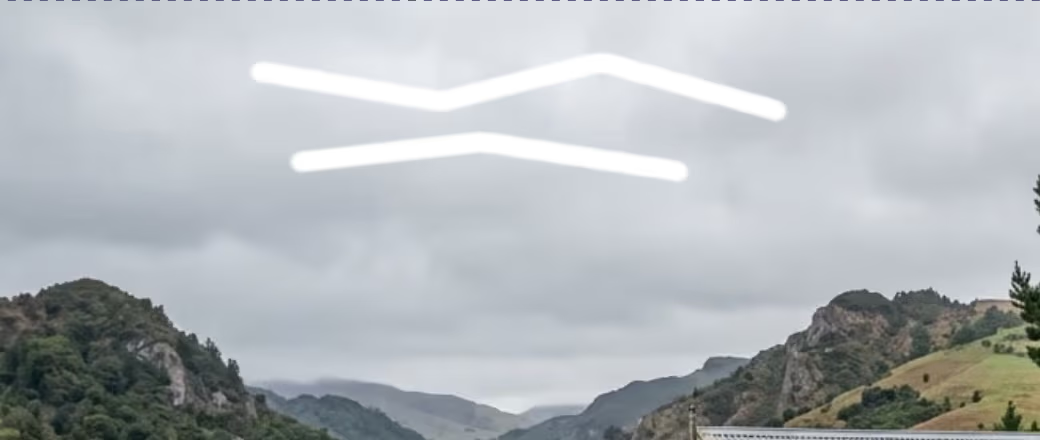
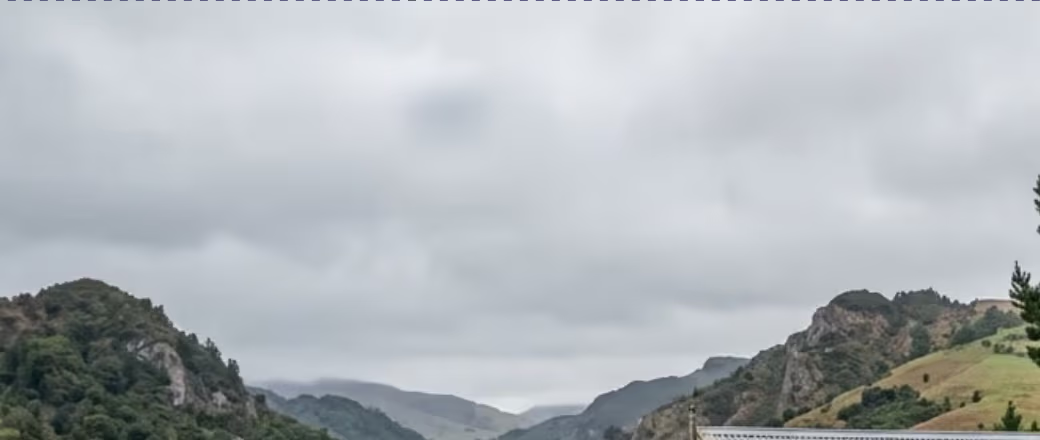
Brush over an edge and it softens a little more with every pass. Switch Mode to Sharpen, or hold Alt, to crisp it instead. It's made for the last step of a retouch: the hard edge of a pasted layer, or the rim of a Spot Healing fix. It looks at everything you can see, so it works across layers, and it paints into the layer you have selected.

Find it in the Heal group of the tool rail, or press R. Size, Hardness and Strength are in the options bar.

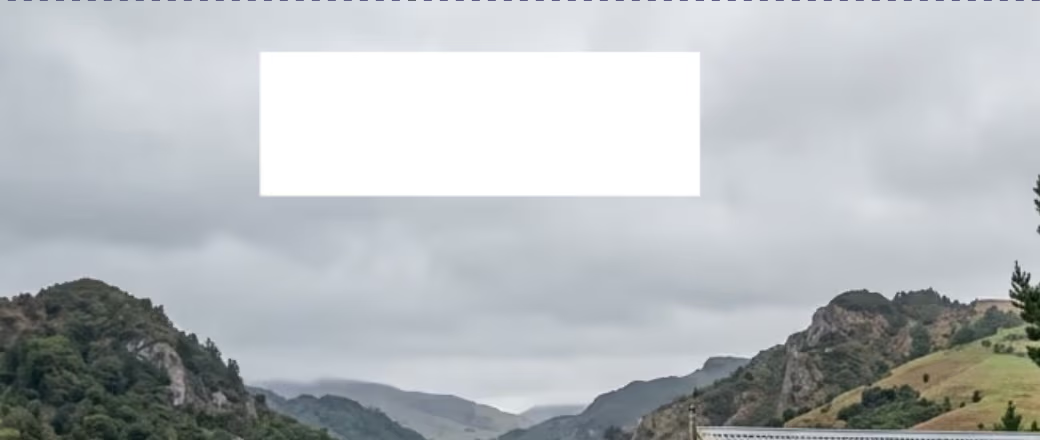
A white patch with a hard edge on a cloudy sky Before
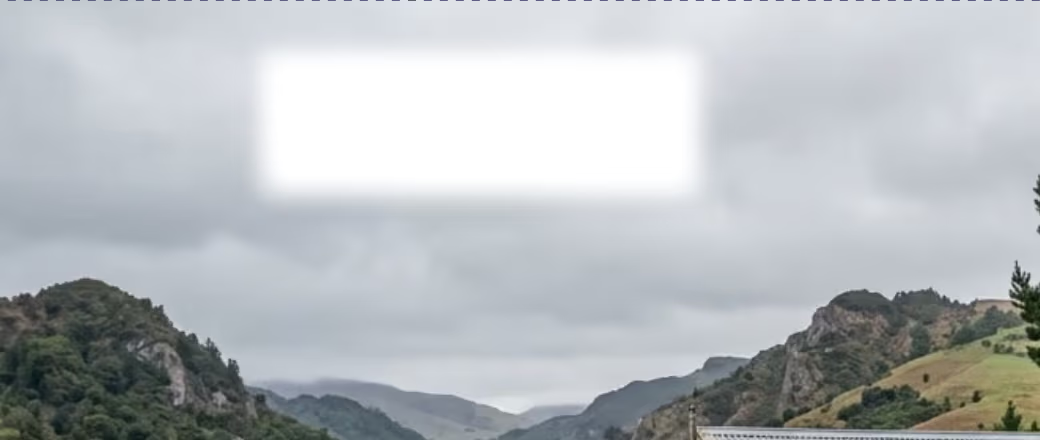
The same patch after several passes with the Blur brush, its edge softened into the sky After
The Blur options bar: Mode (Blur or Sharpen), Size, Hardness and Strength

Spot Healing ▸ Smooth

A fourth Spot Healing method, for soft areas: sky, walls, bokeh, soft light. Brush over what you want gone and Smooth discards it, then refills the area so the gradients around it carry on straight through, with matching grain so it doesn't look like a patch.

Turn on Include layers below to blend the edge of a pasted layer into whatever it sits on. Smooth only continues what's around it: for texture or structure, stay with Texture or AI.

Two white brush strokes across a cloudy sky above hills Before
The same sky after brushing over the strokes with Smooth, the clouds continuing unbroken After

A cleaner Brush panel

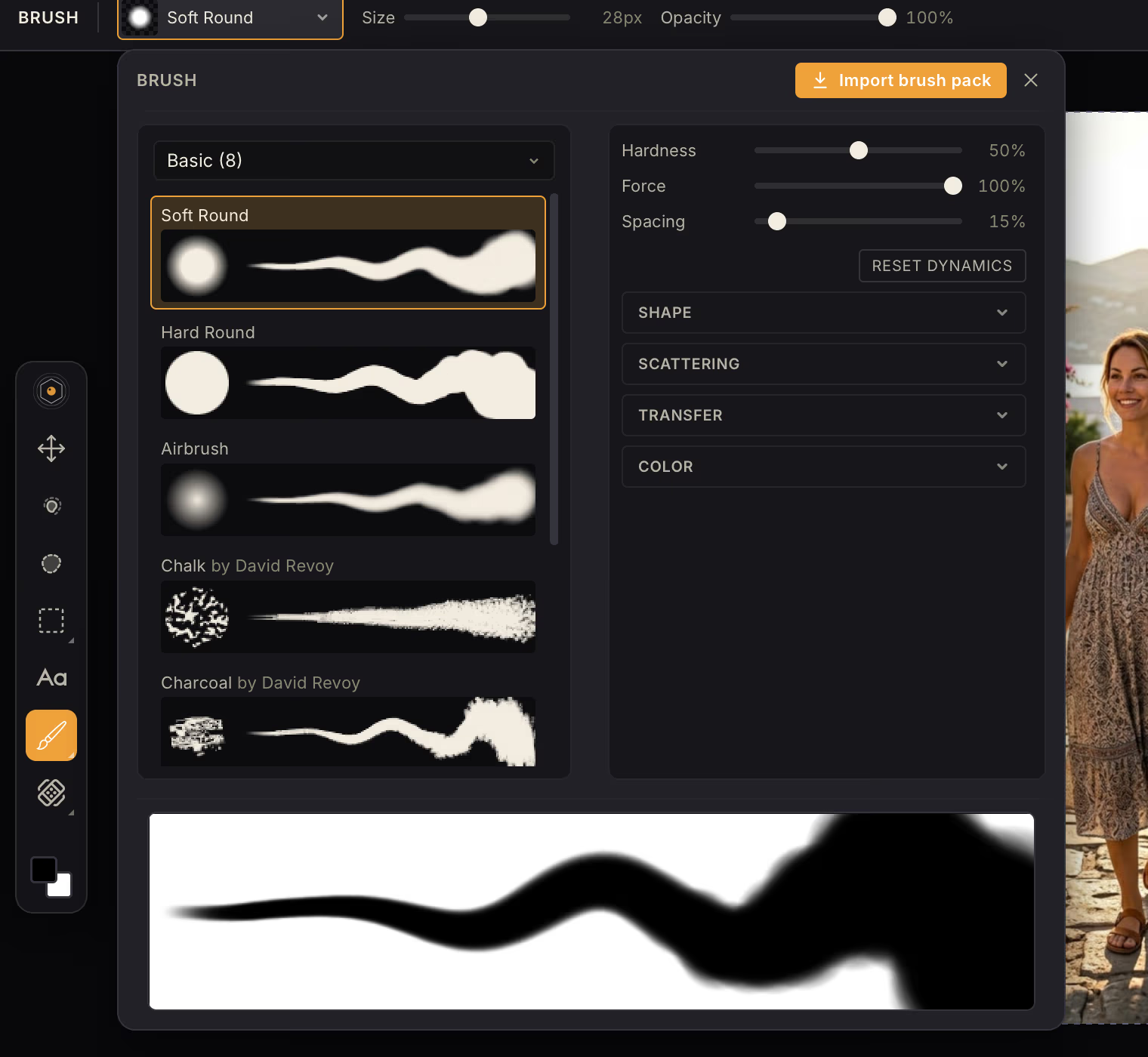
Every brush now shows its tip next to a live stroke preview. The previews scale smoothly with brush size instead of stepping, the stroke no longer re-rolls while you drag a slider, and the big preview paints in your current brush colors. The panel is wider so nothing feels cramped.

The Smoothing slider is gone. It added a lag that was hard to reason about, and strokes are still rounded off on their own.

The Brush panel: a list of brushes, each with its tip and a stroke preview, dynamics sliders on the right and a large stroke preview below

New Image: pick by shape

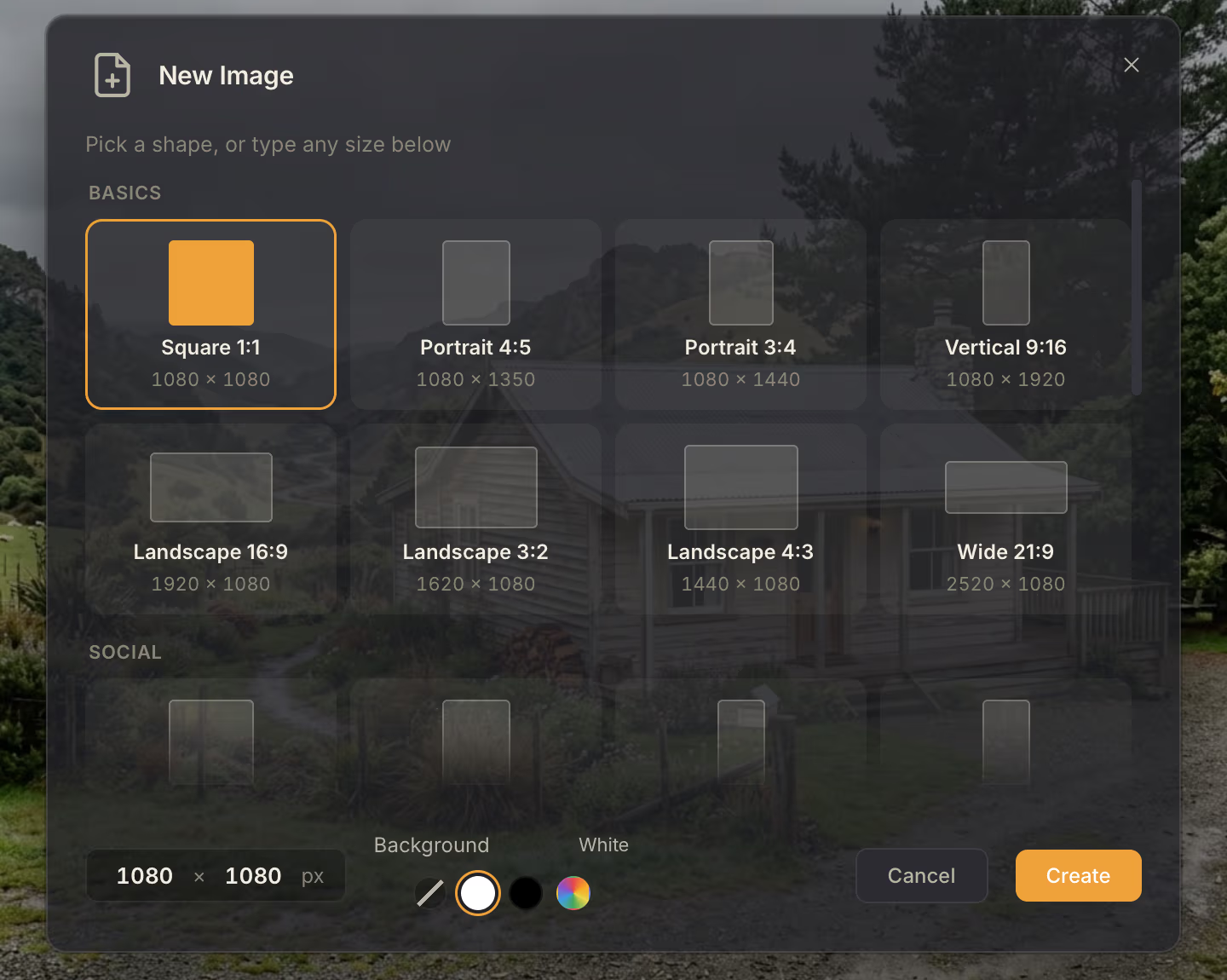
The New Image dialog is now a scrolling gallery of silhouettes: your own formats, Basics, Social, Video, Print and Icons. Basics are named by ratio (Landscape 16:9, Portrait 4:5) at a 1080 px short edge, and platform formats keep the names you know. Landscape A4 and US Letter join the portrait ones.

Documents can now be up to 10,000 px a side, and the zoom-out limit follows the size of your document, so a huge canvas is still easy to take in.

The New Image dialog, with a gallery of shapes under Basics (Square 1:1, Portrait 4:5, Landscape 16:9 and more) and a Social section below

Screenshots in feedback

Drop, paste or pick up to three screenshots straight into the feedback form. Three cards replace the dropdown: Something's broken, I have an idea, Something else.

Reports now include your Mac's chip, memory and macOS version, so I can reproduce what you saw without a round of questions. The form lists exactly what is sent, and it's never your other images, prompts or file names.

The Send feedback dialog, with three cards (Something's broken, I have an idea, Something else), a message box with a screenshot drop target, and name and email fields

Improved

  • Nano Banana 2.1

    Google's newest image model, available through DepthField Cloud or with your own fal or Wavespeed key. It's now the default wherever Nano Banana 2 was: Denoise, Replace Background, the Emotion Editor, and twelve built-in Styles. If you never changed those settings, you're moved over automatically. The Emotion Editor also gets its own model choice in Preferences.

  • Drag a layer to duplicate or delete it

    Drop a layer on the New layer button to duplicate it, or on Delete to remove it. The drag shows a small thumbnail with the layer's name, and the drop line stays visible.

  • Clearer messages when a model says no

    When a model refuses a prompt or an image, you now get an explanation in plain words instead of a bare “Unprocessable Entity”. It no longer blames your prompt alone: the picture you sent may be what was refused.

  • Controls that hold still

    The Brush, Font, Weight and Text Style dropdowns keep a fixed width, so the controls beside them stop jumping when you pick something. The model picker does the same: long names are shortened instead of pushing a dialog sideways.

  • A calmer Photoshop import notice

    Opening a Photoshop file that's only partly supported now shows a quiet notice instead of an error dialog. It says whether the picture looks the same, never lists individual layers, and suggests saving as .dfp.

Fixed

  • Soft brush strokes at low force no longer turn fully opaque after the first few hundred pixels, and an eraser with reduced force no longer snaps to full strength mid-stroke.
  • Burn and Dodge now switch to the opposite mode when you hold Alt, as the hint says.
  • Clicking quickly with Spot Healing no longer fails with a “store is not open” error.
  • New and opened images are no longer centered under the advanced tool rail when it's open.